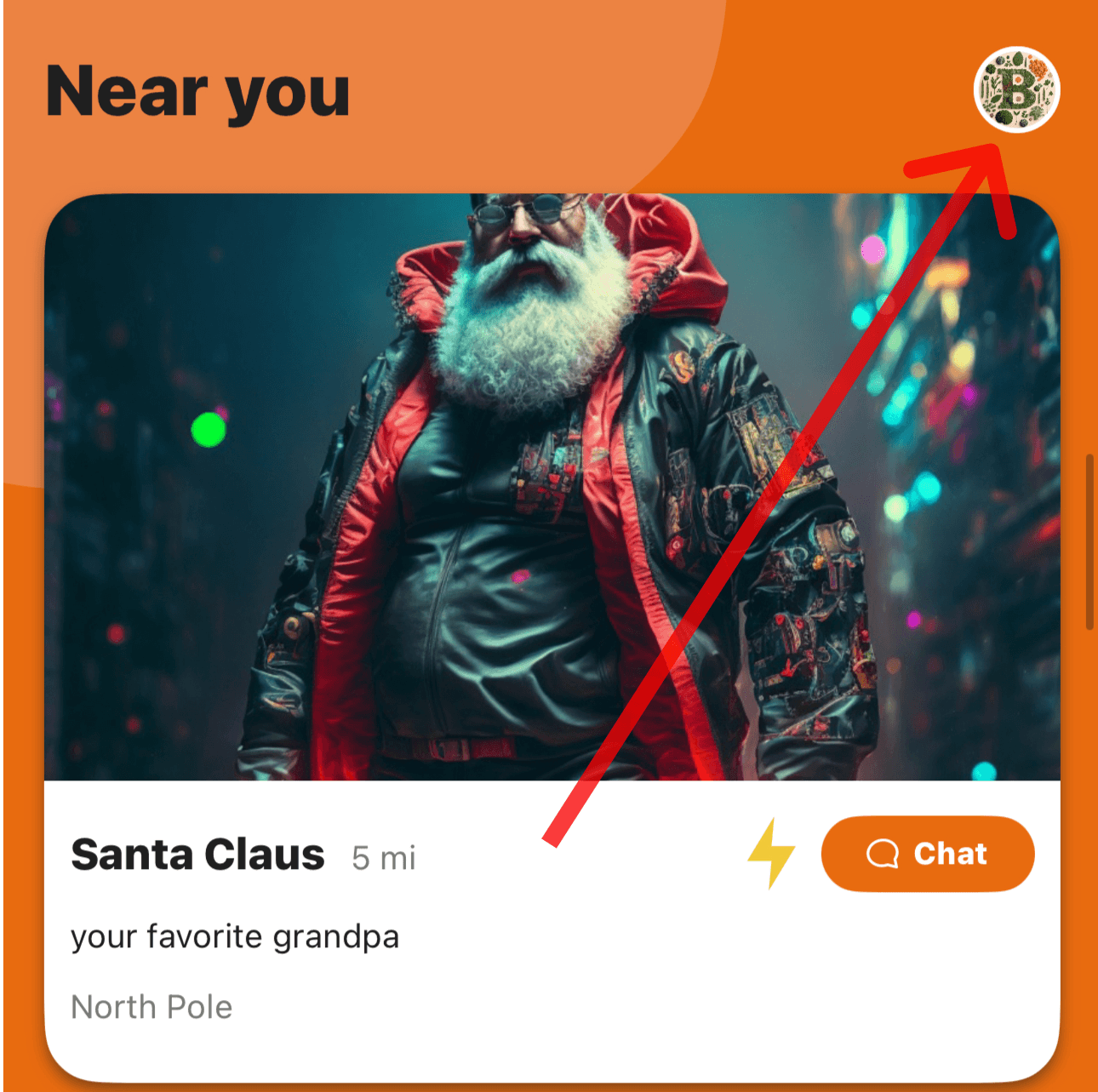

Create A Group Chat
1. Click on the square in the top right corner of the Messages tab.
2. Follow instructions.
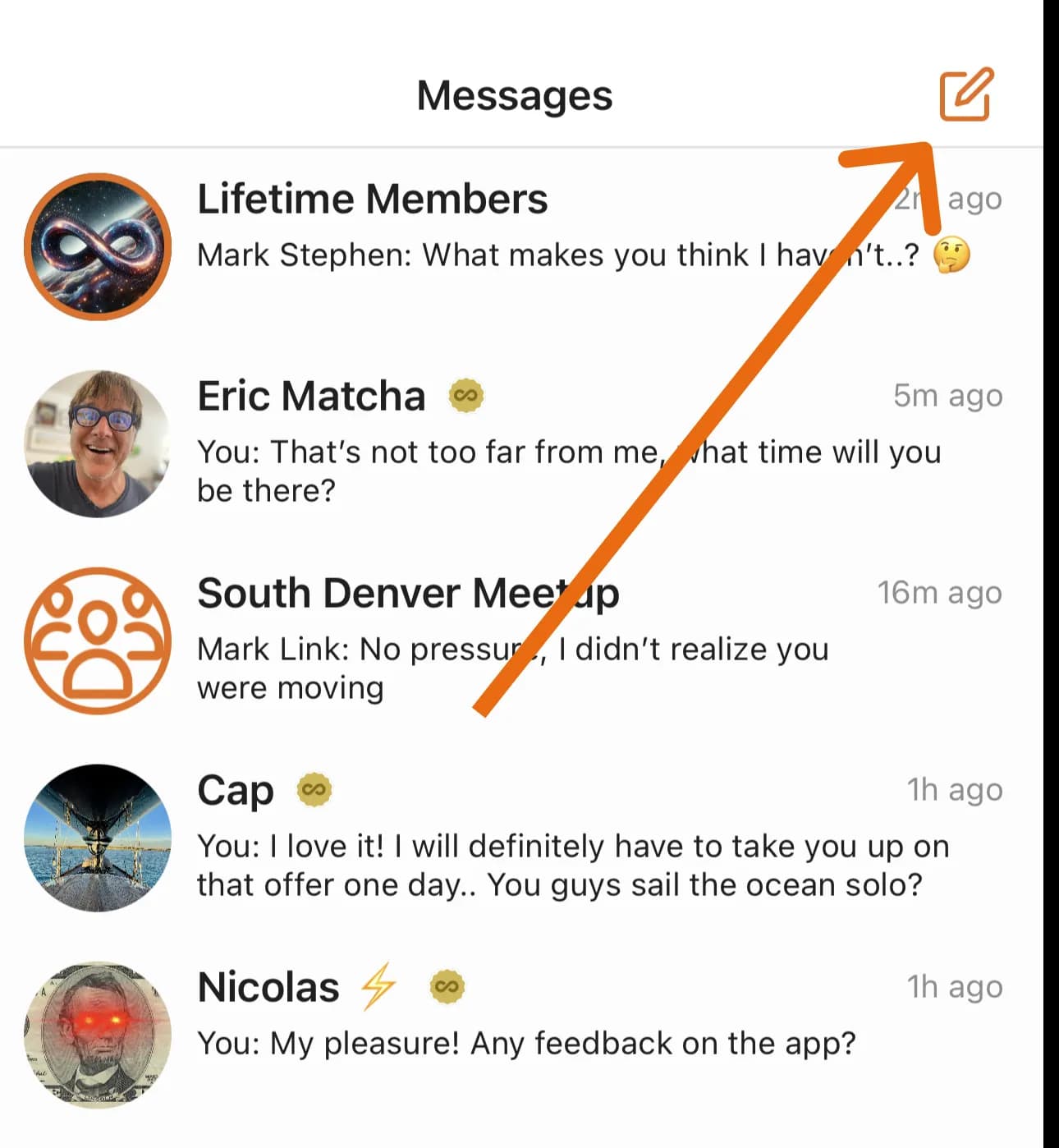
1. Click on the square in the top right corner of the Messages tab.
2. Follow instructions.
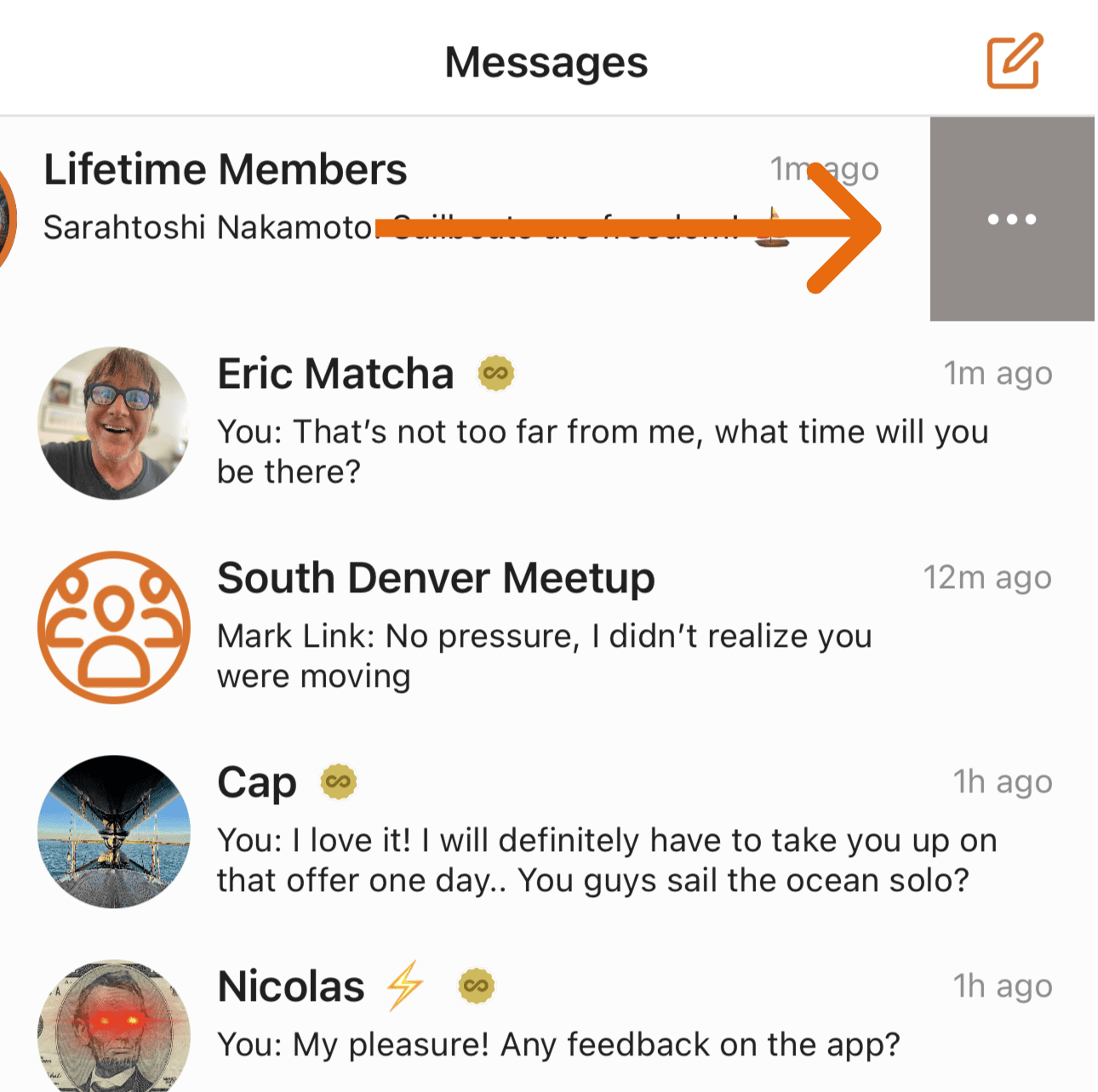
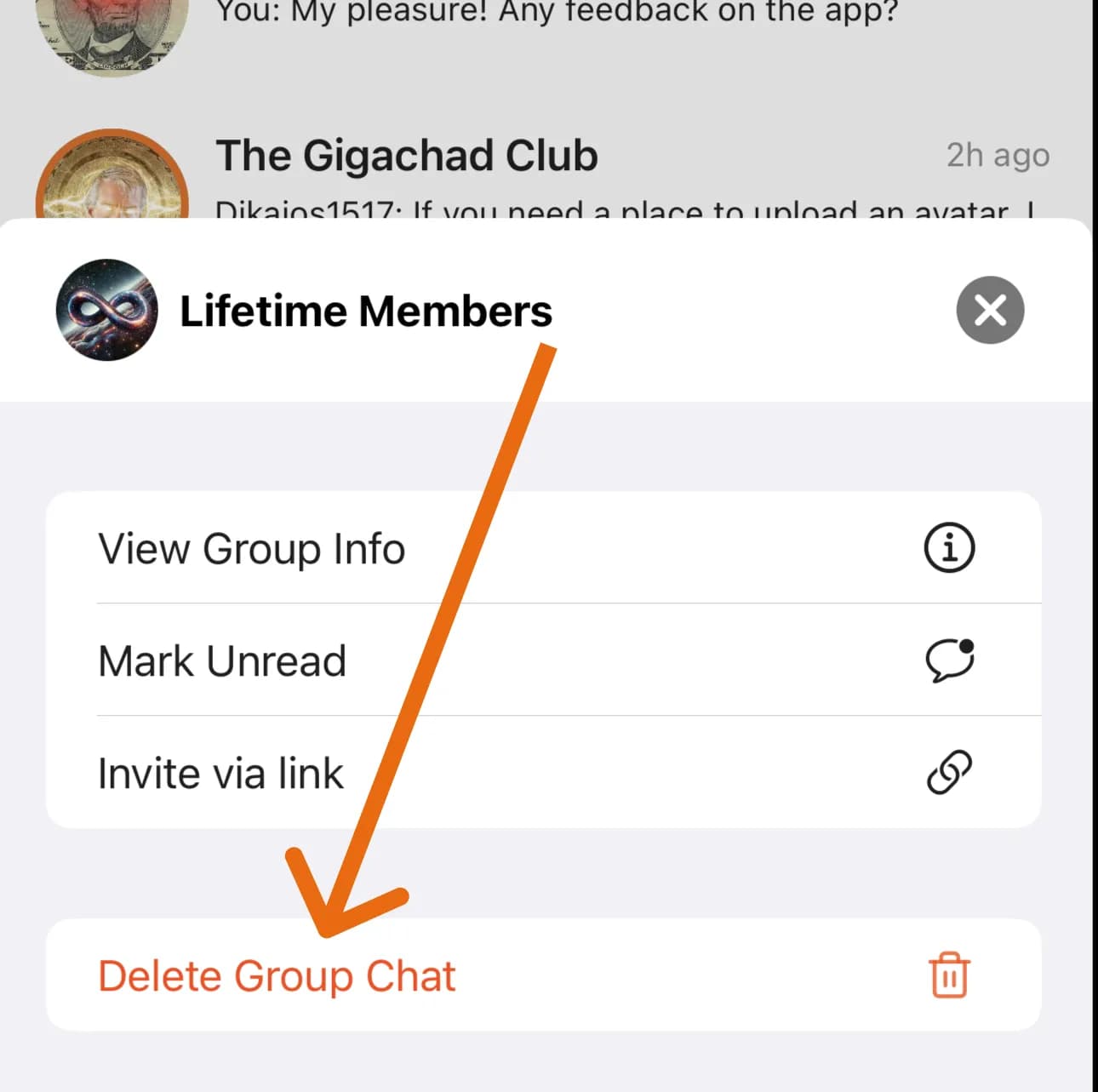
1. Swipe Left on iOS, or long press on Android.
2. Click on Delete Group Chat.
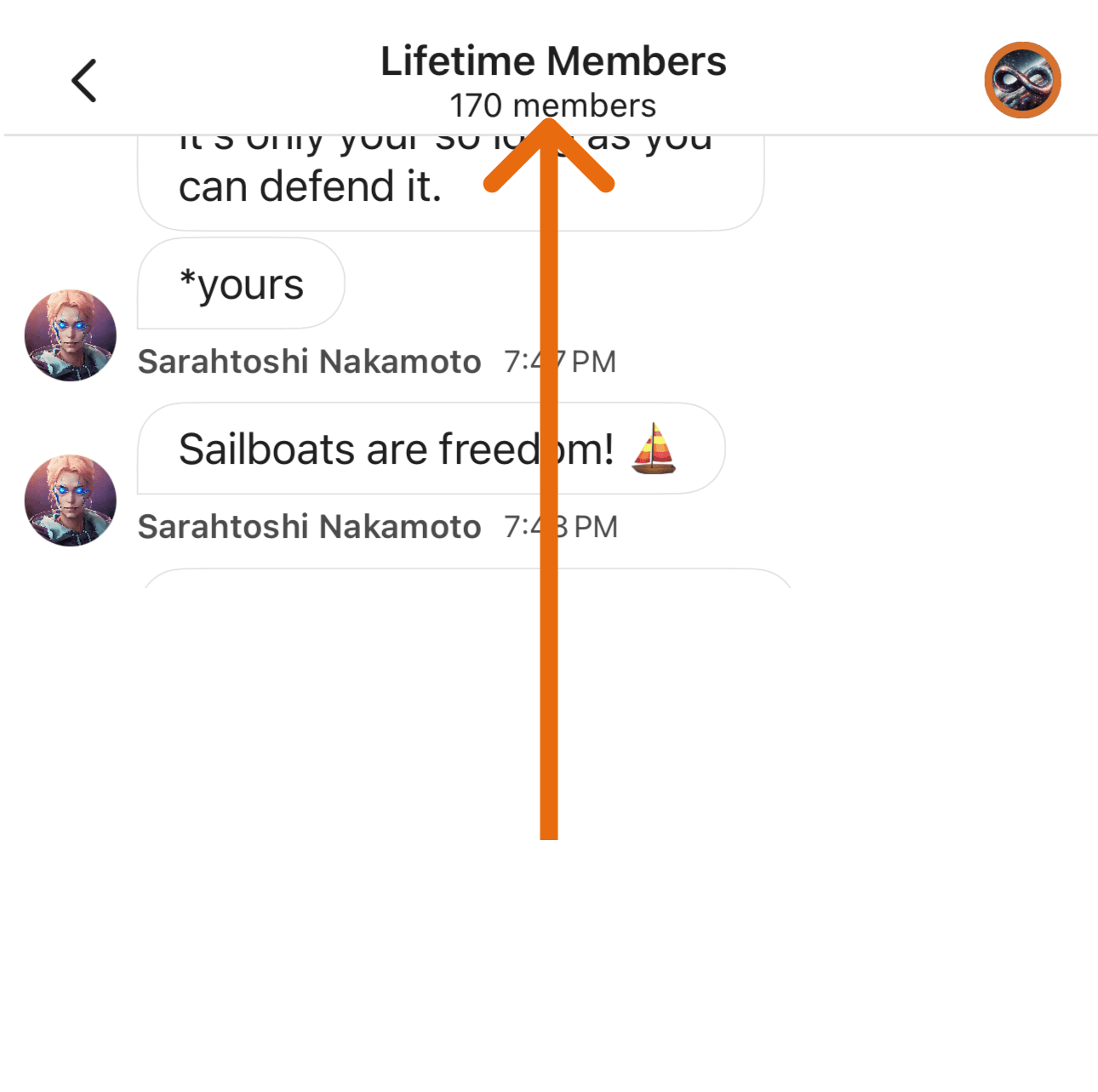
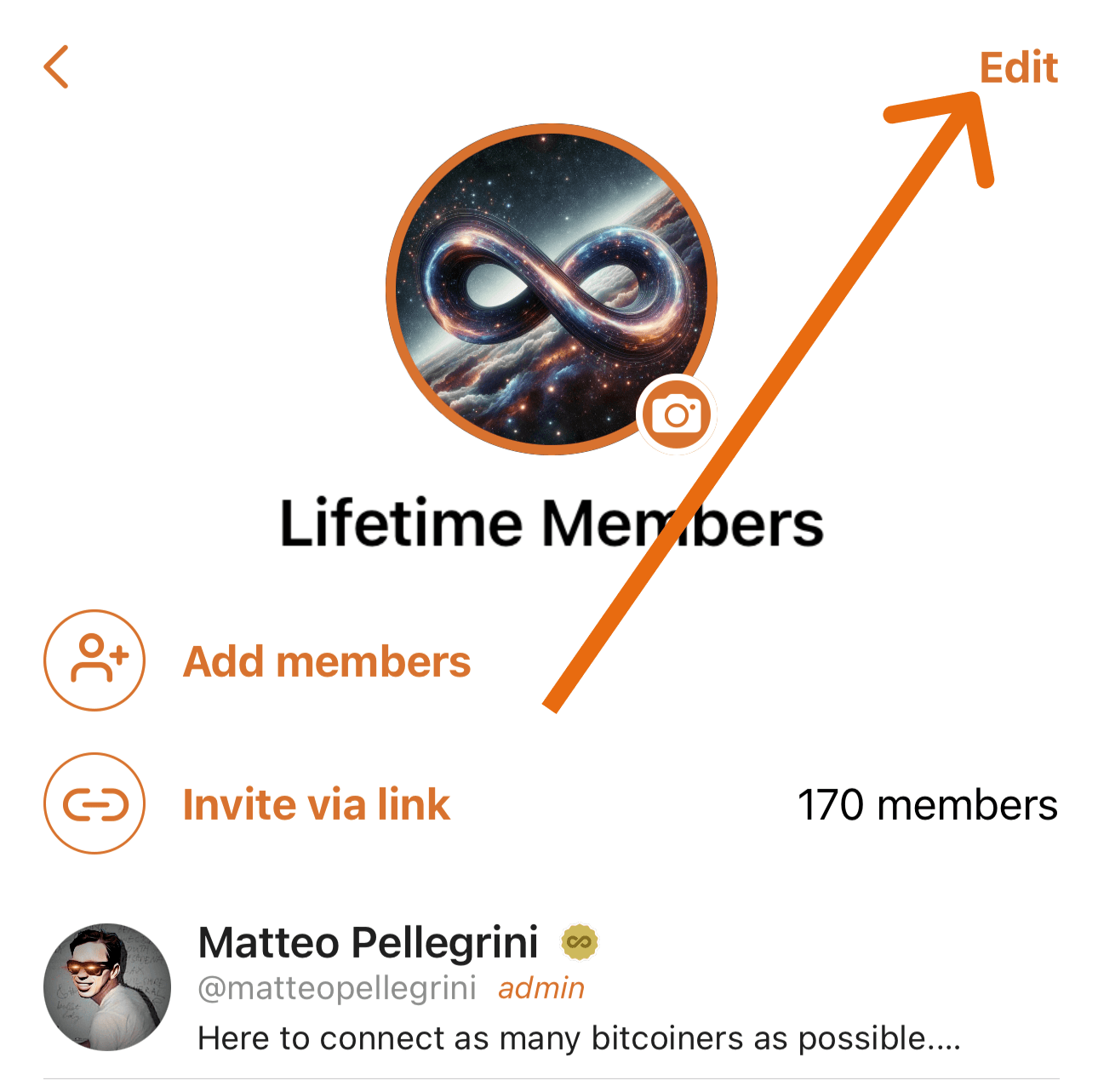
1. Click on the Group Chat title.
2. Click on the Edit button on the top right.
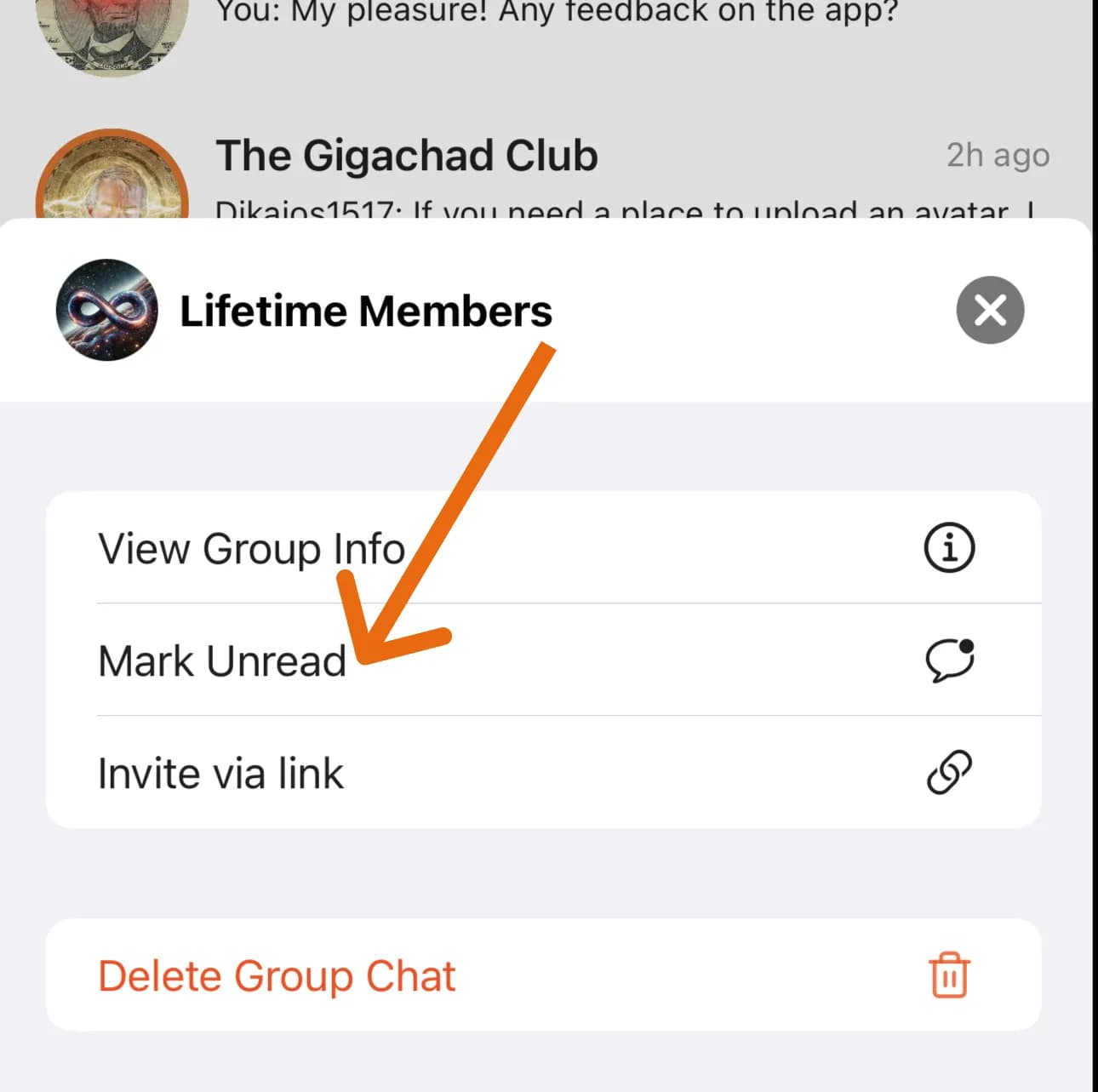
1. Swipe Left on iOS, or long press on Android.
2. Click on Mark Unread.
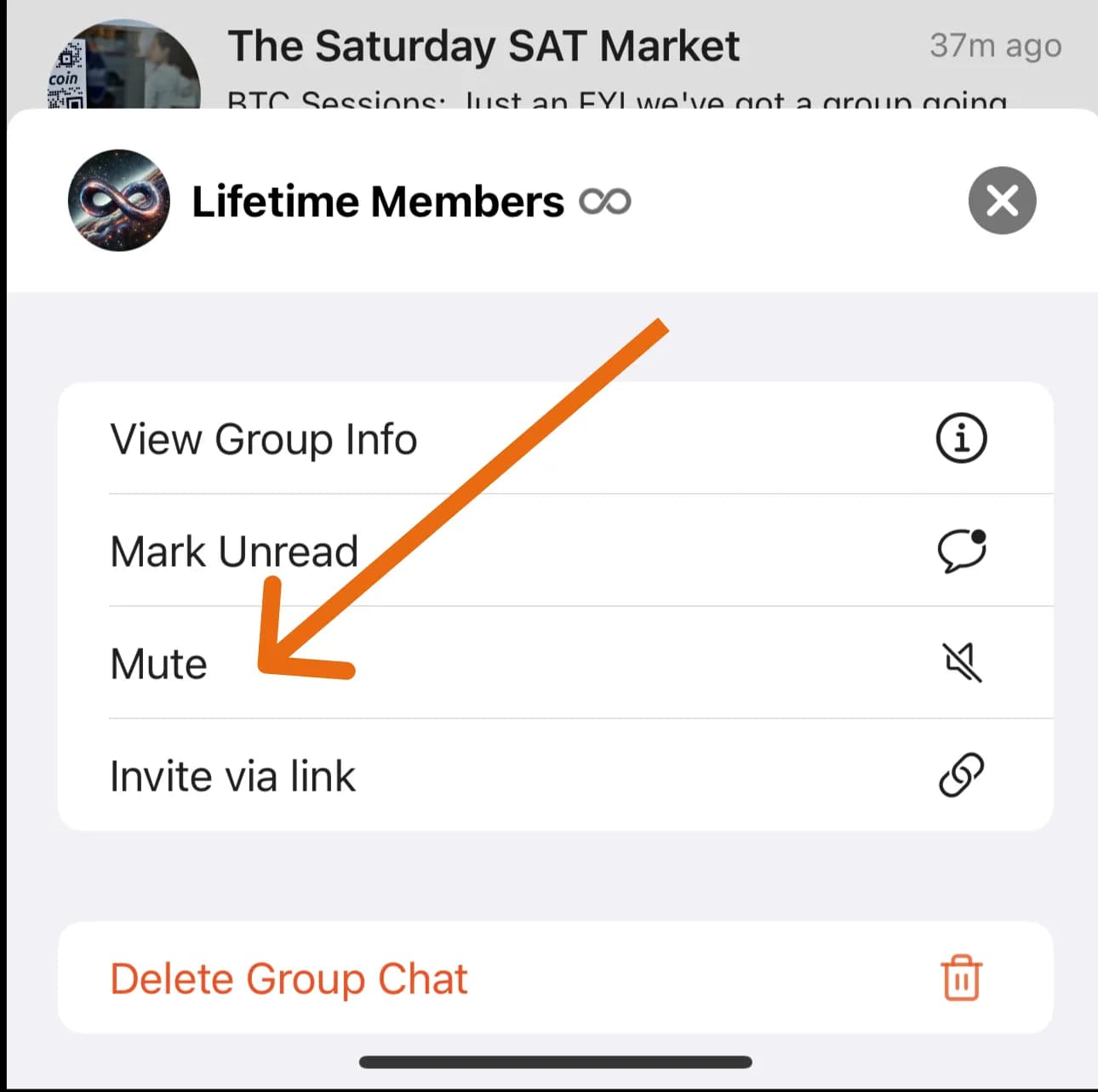
1. Swipe Left on iOS, or long press on Android.
2. Click on Mute.
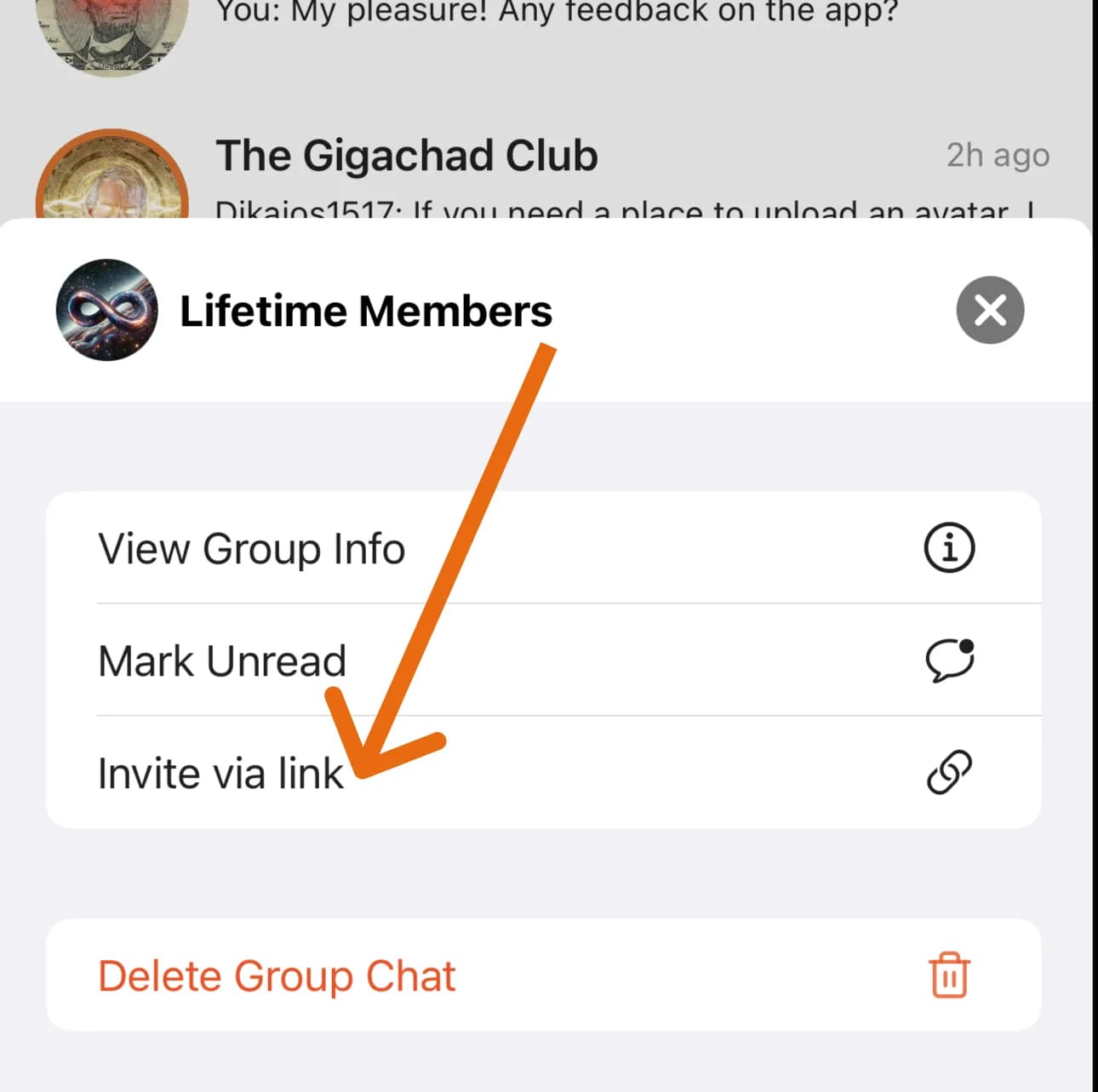
1. Swipe Left on iOS, or long press on Android.
2. Click on Invite via link.
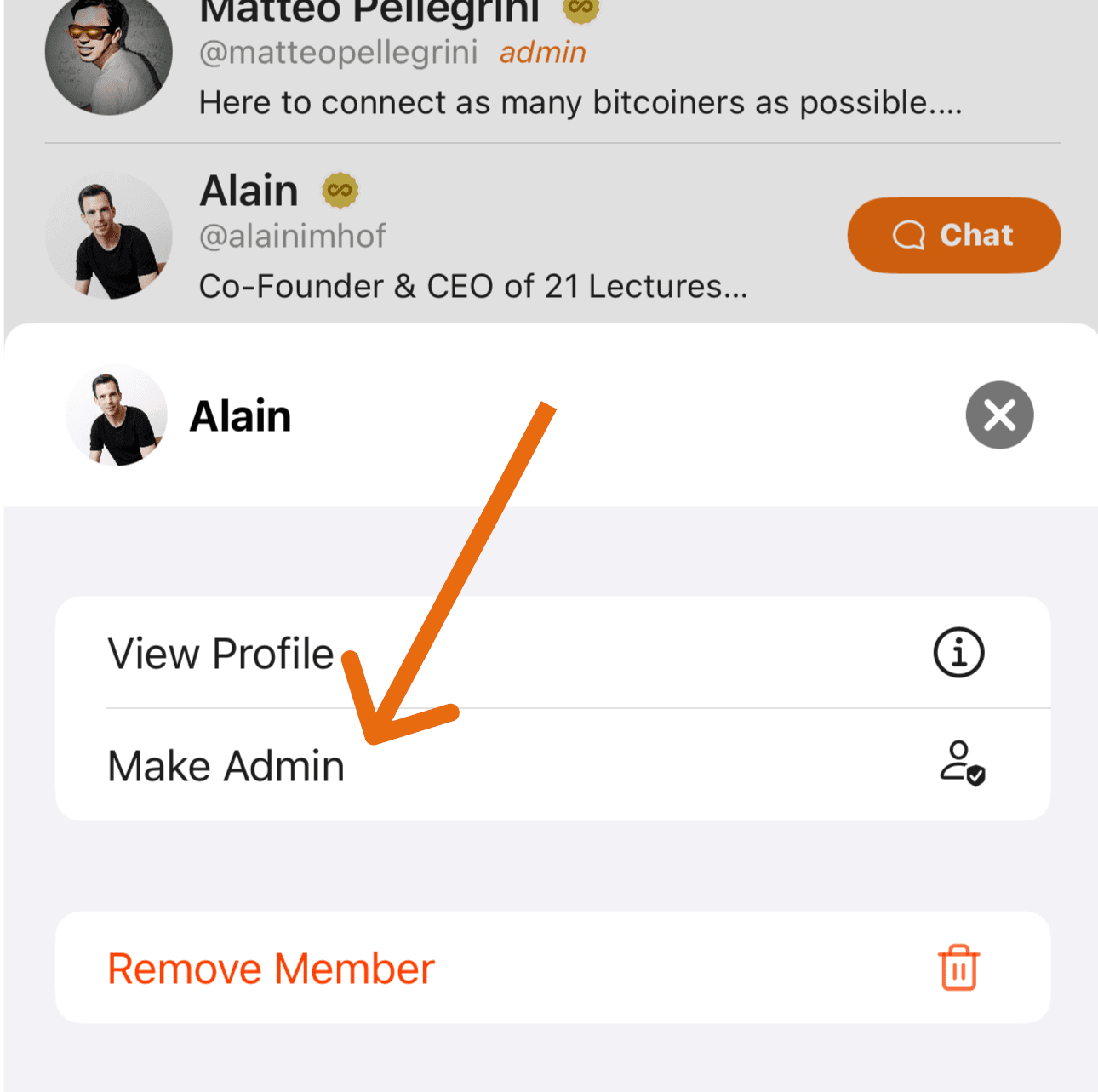
1. Click on the Group Chat title.
2. Select the user.
3. Click on Make Admin.
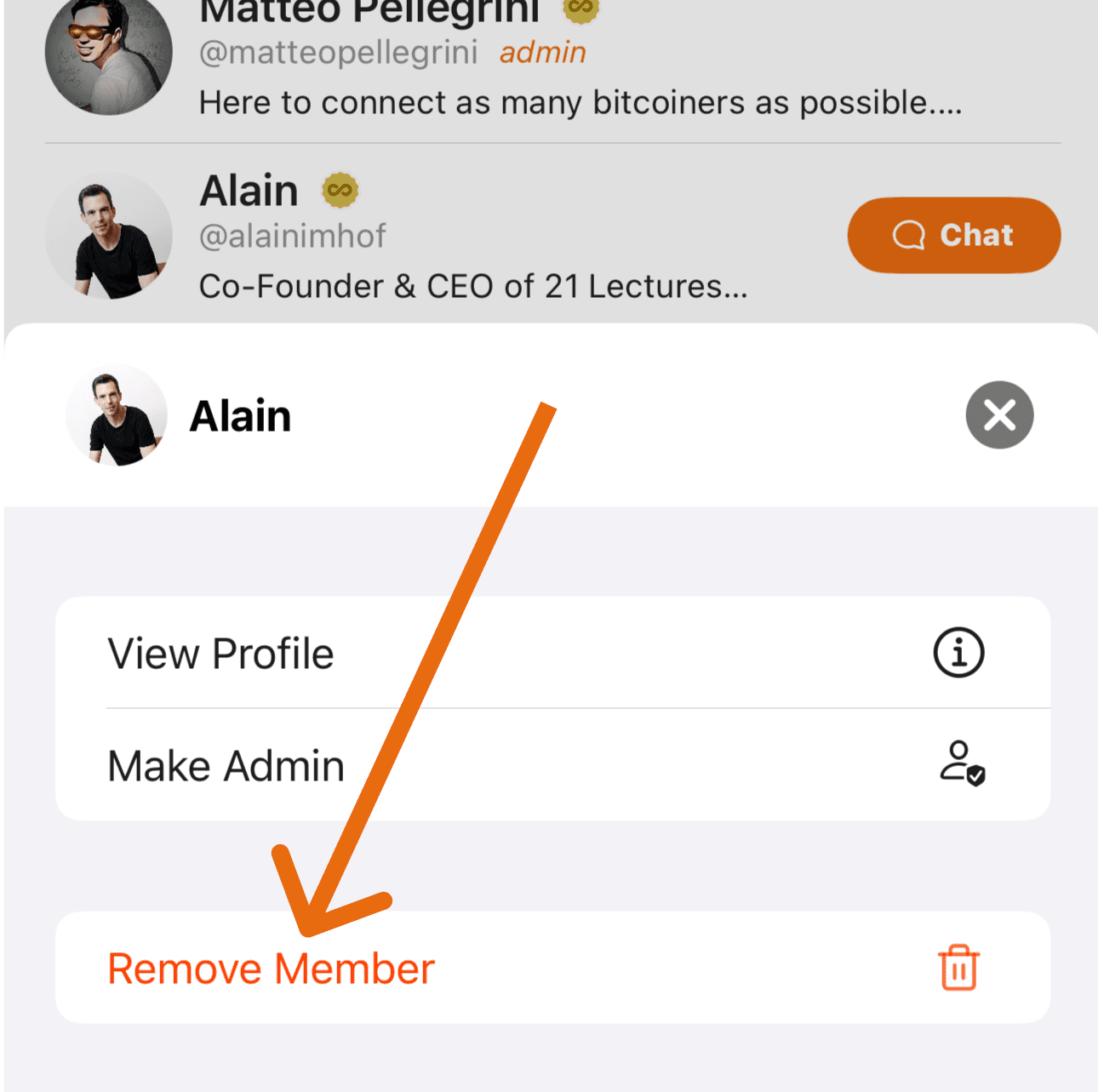
1. Click on the Group Chat title.
2. Select the user.
3. Click on Remove Member.
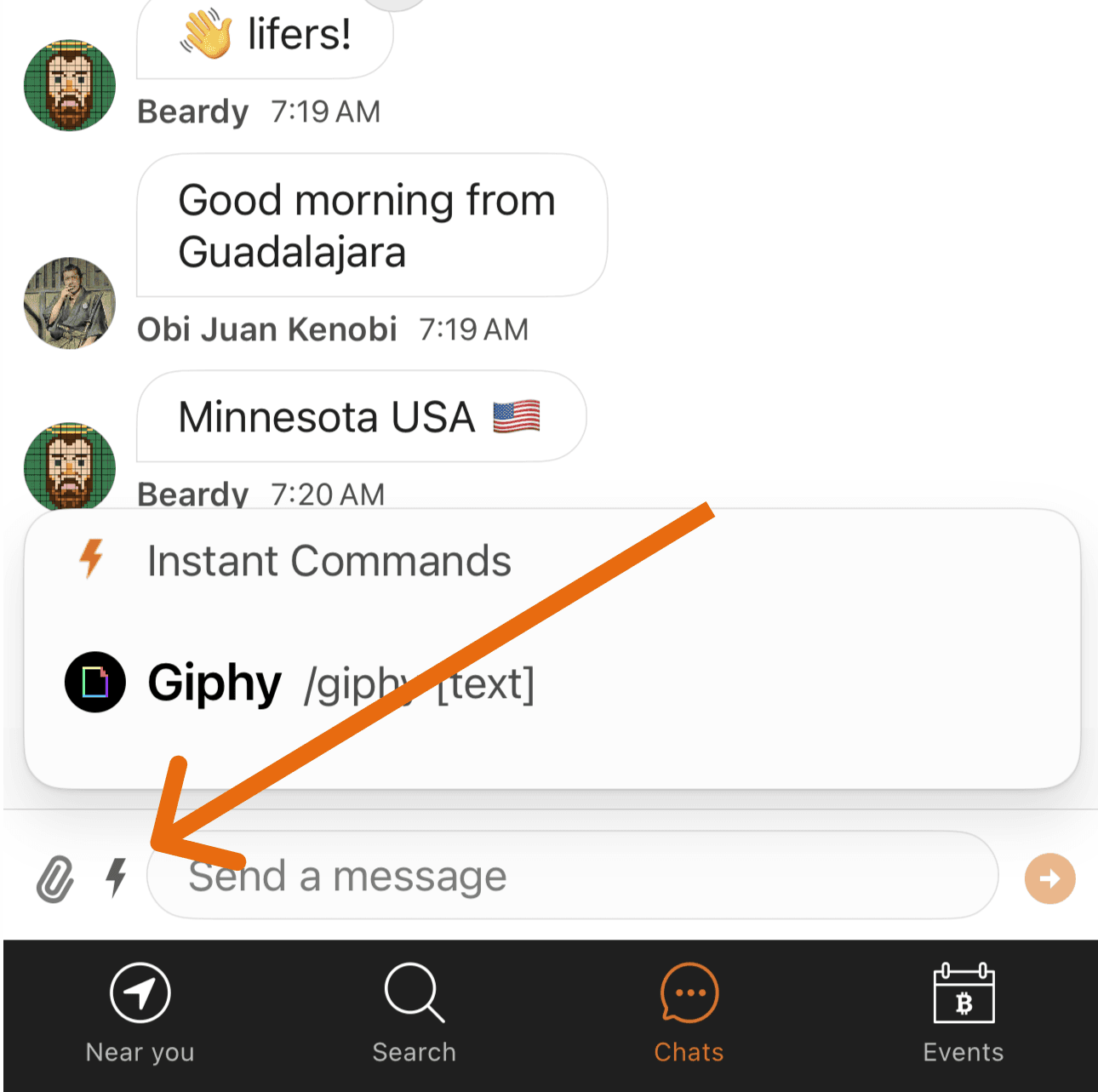
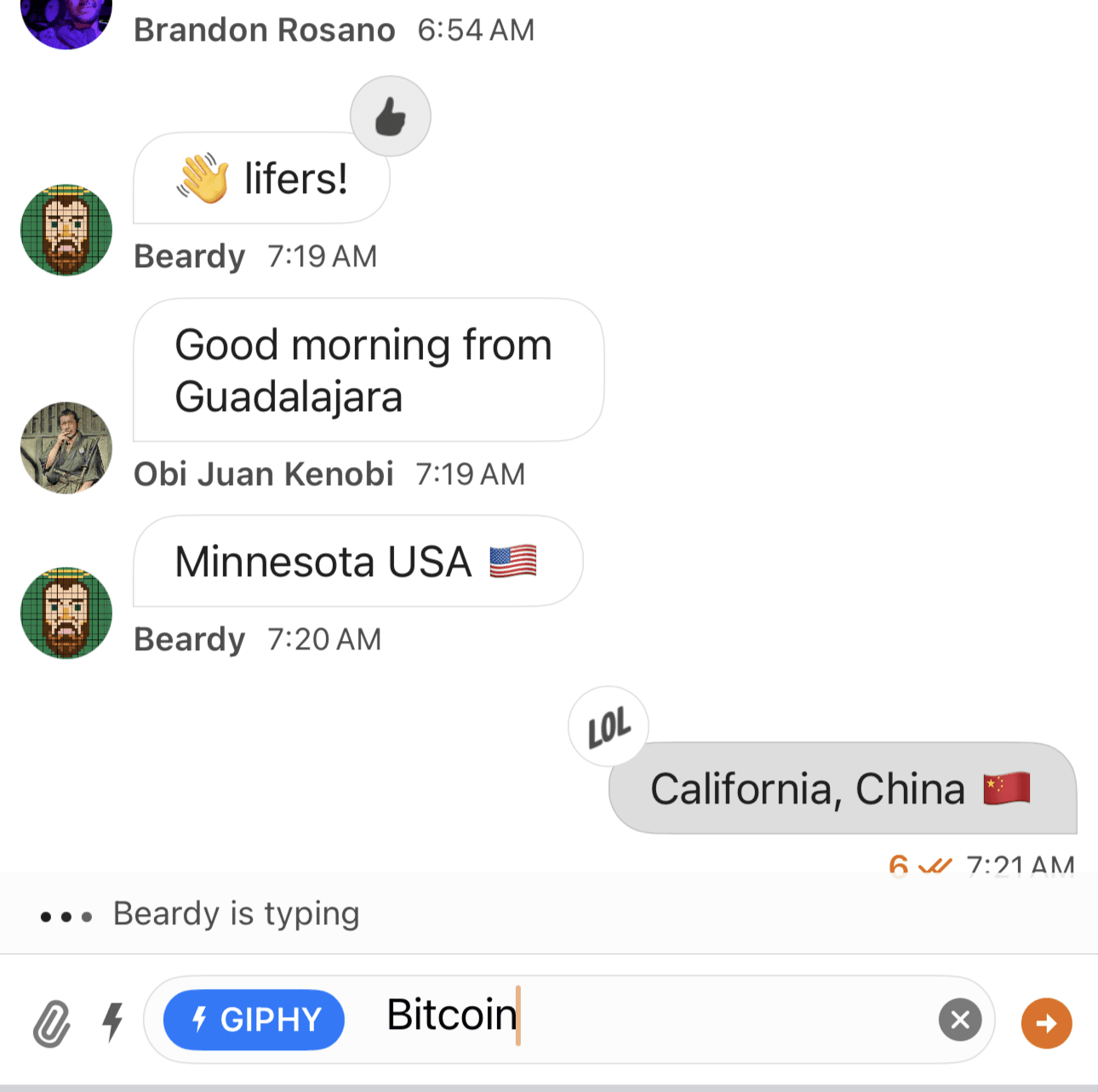
1. Click on bolt icon.
2. Select Giphy.
3. Type the name of the gif and press send.
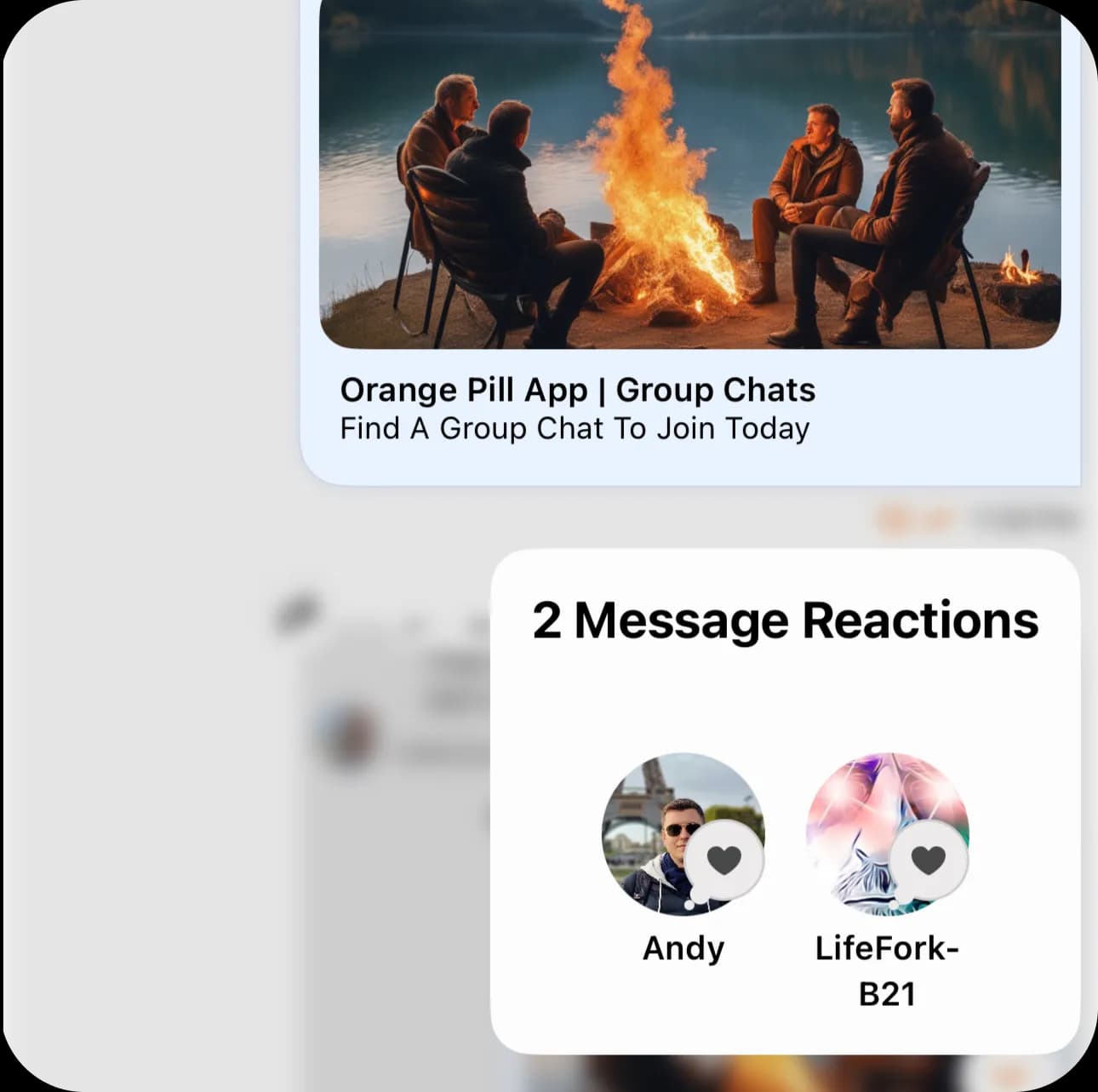
1. Long press on a reaction.
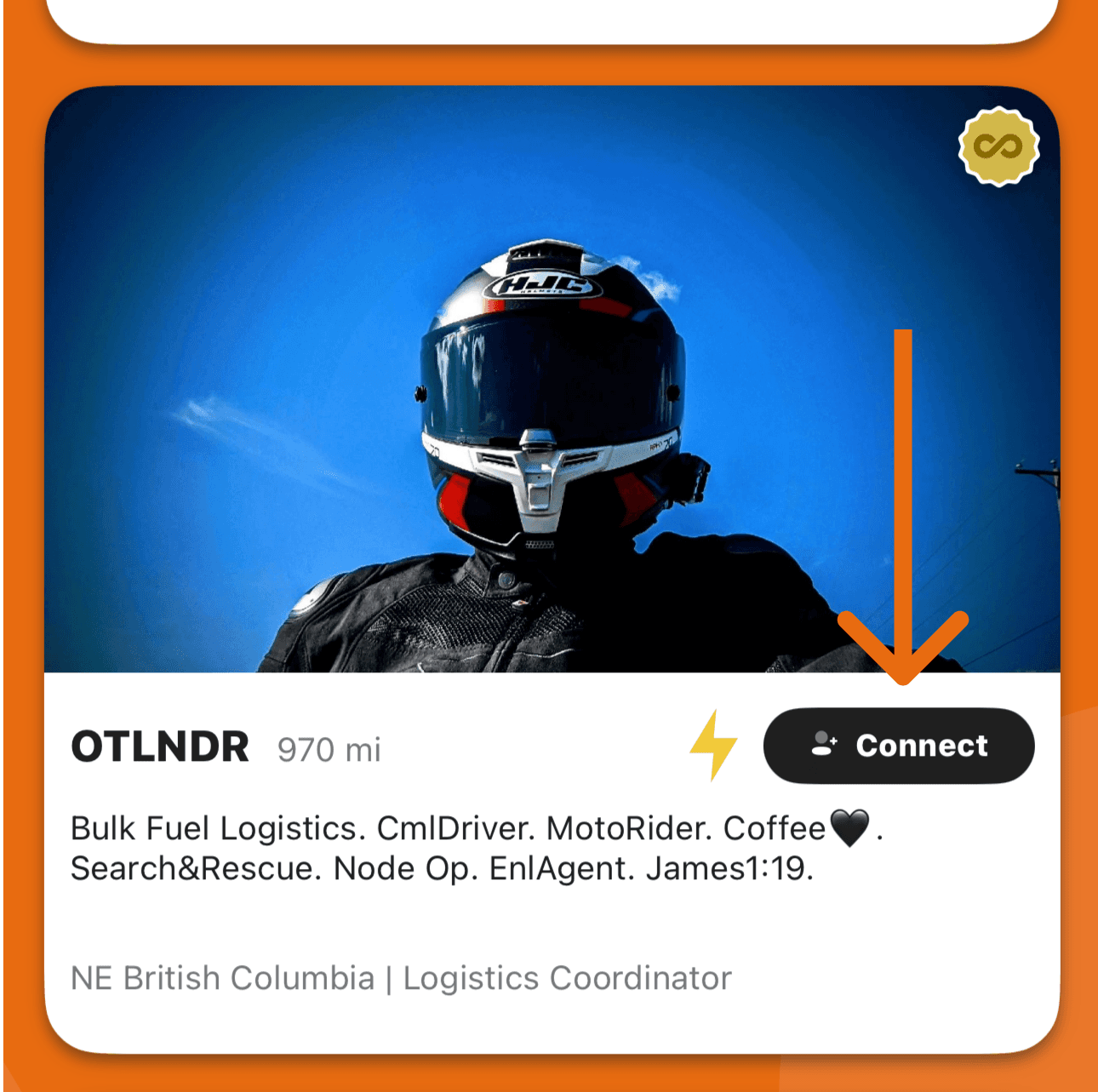
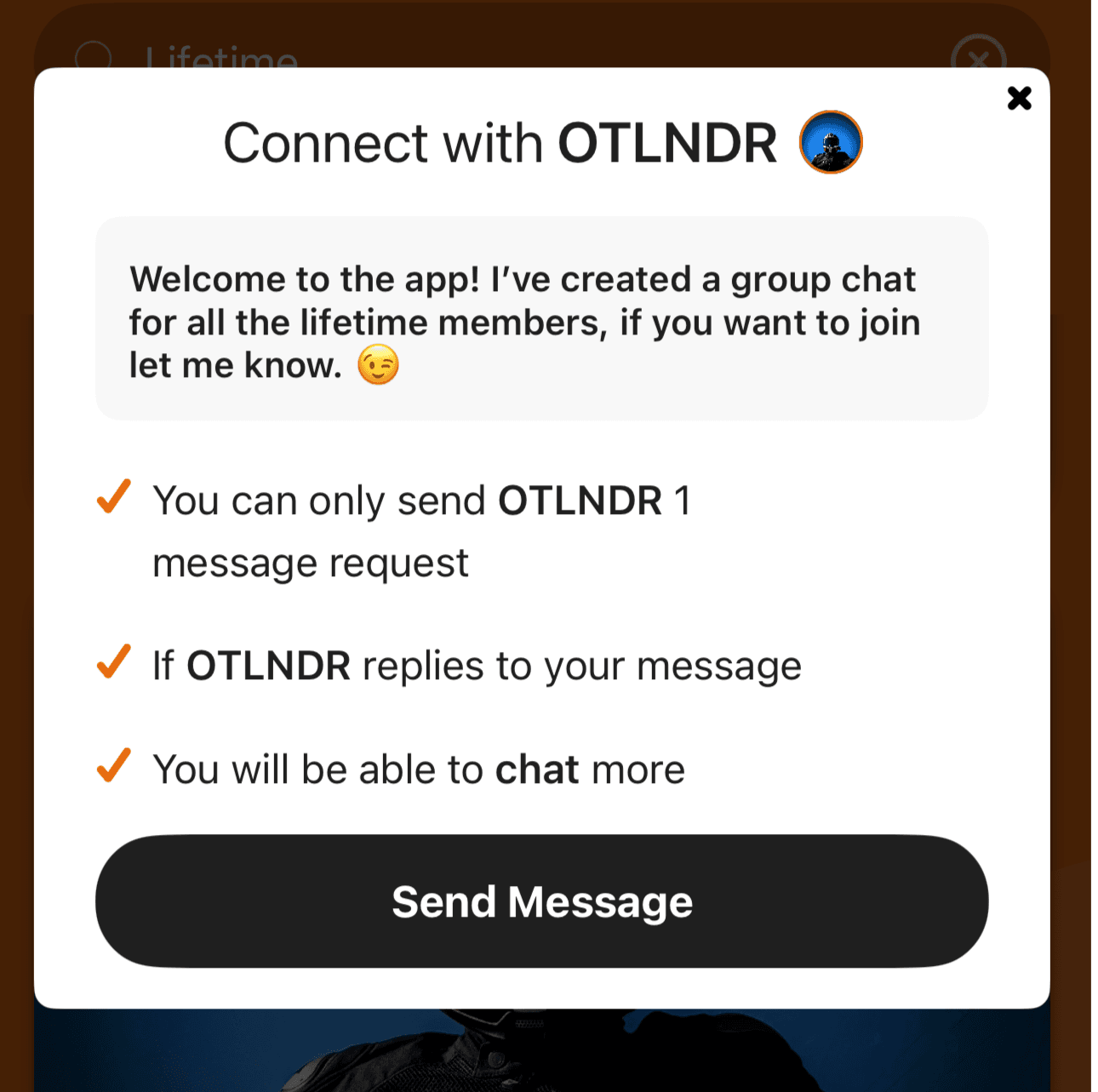
1. Click on the Connect Button.
2. Type your message.
3. Click on Send Message
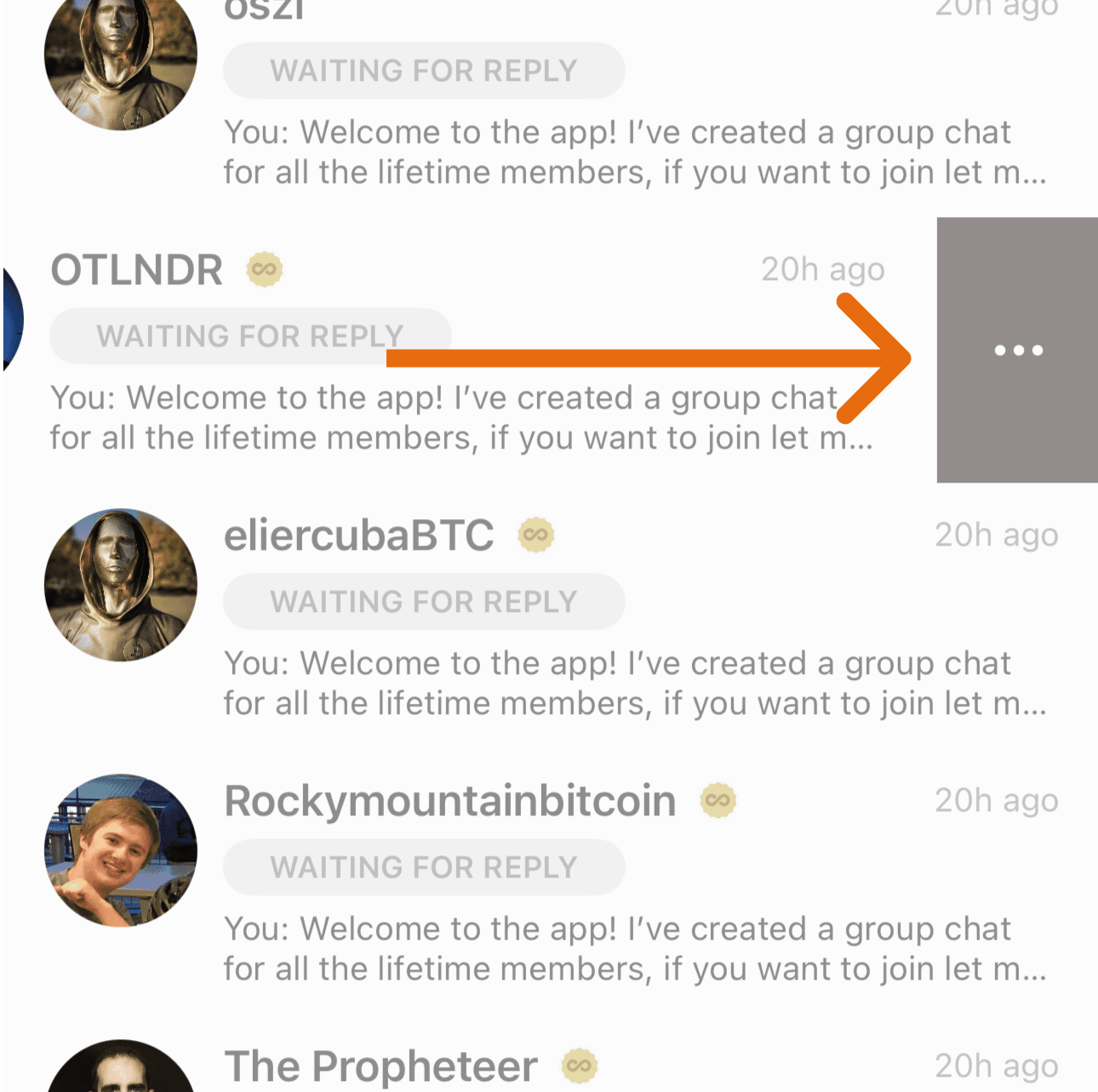
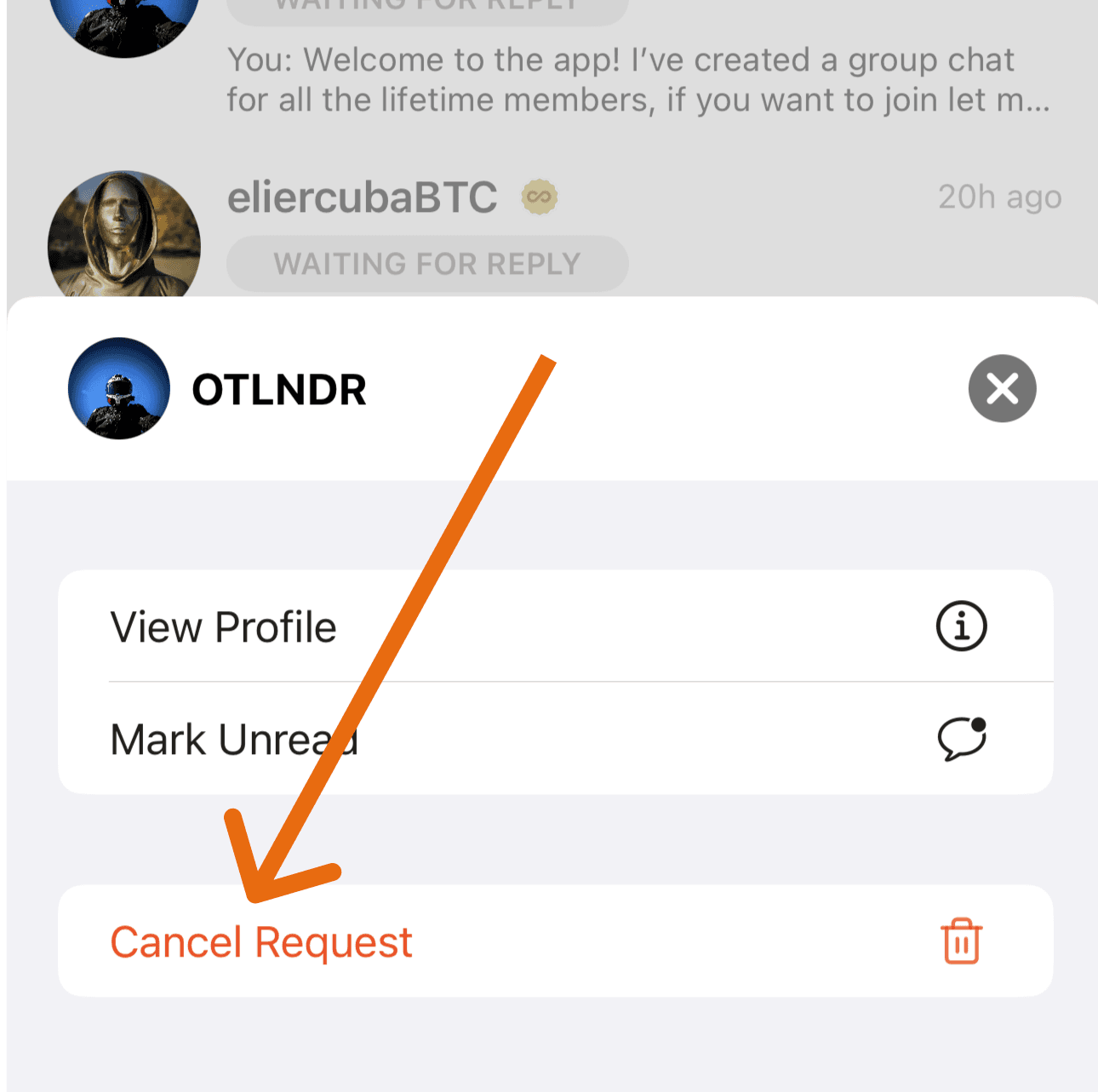
1. Slide left on iOS, or long press on Android.
2. Click on Cancel Request.
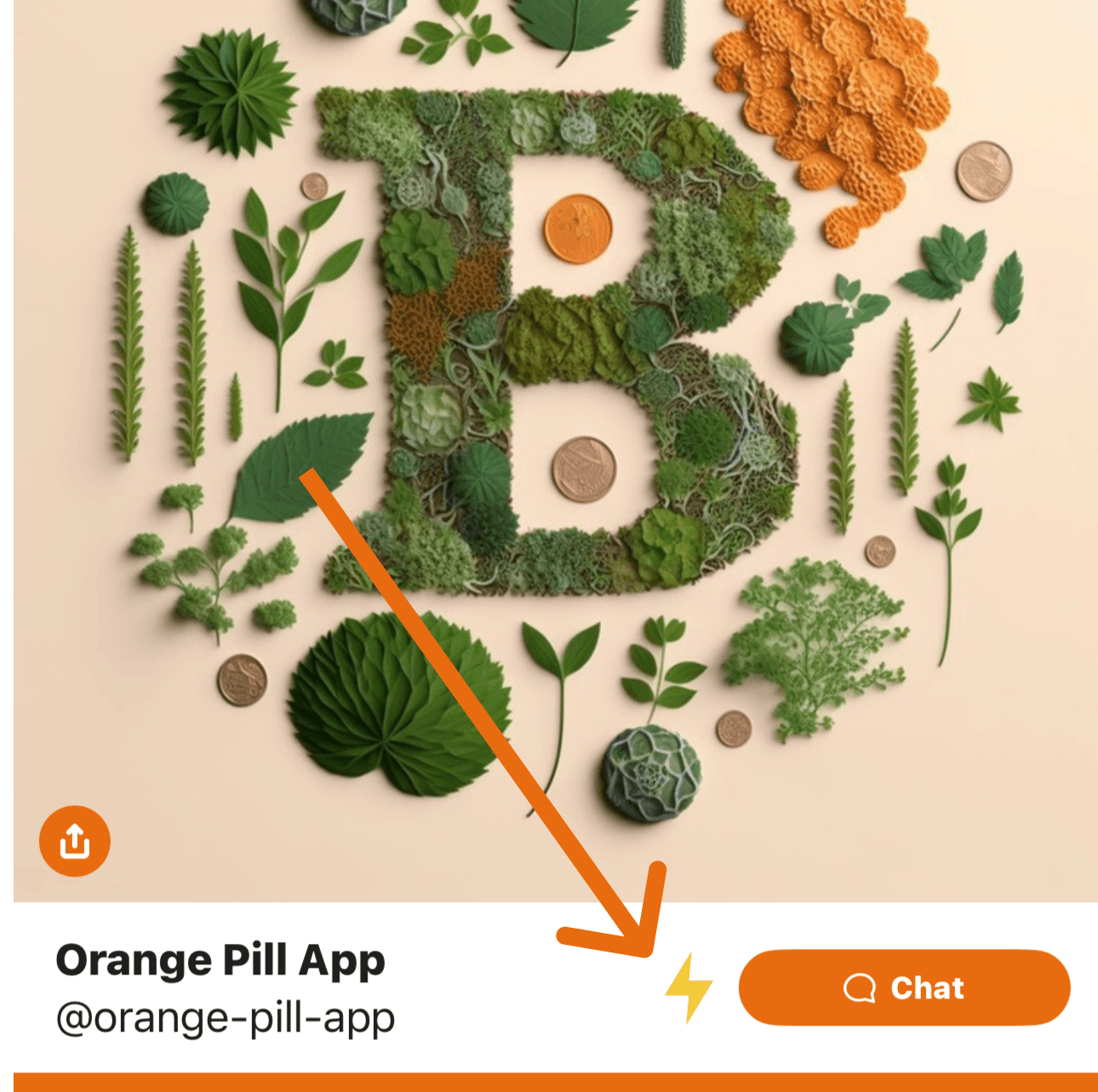
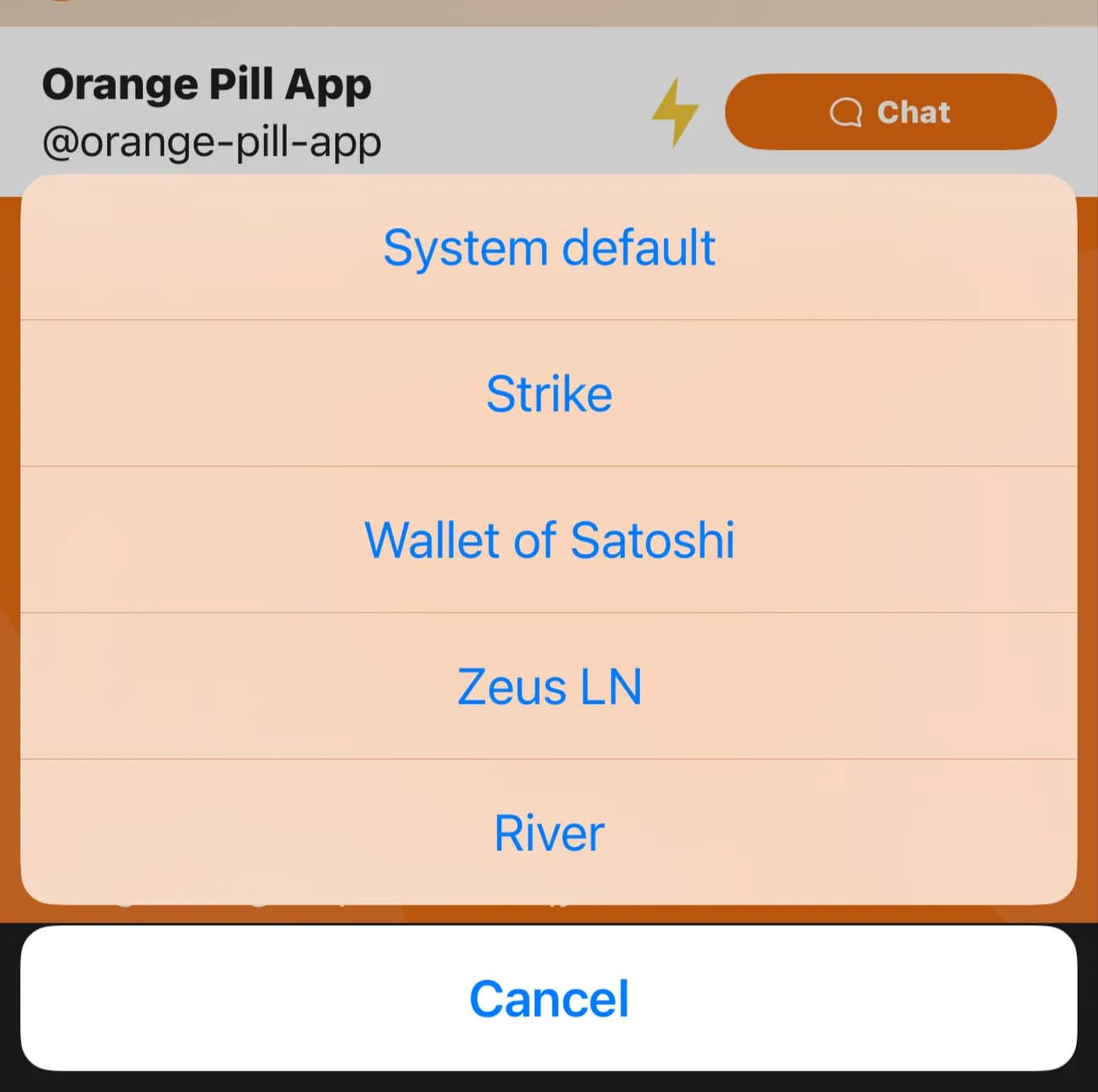
1. Click on ⚡ icon.
2. Choose your wallet.
3. Send Sats.
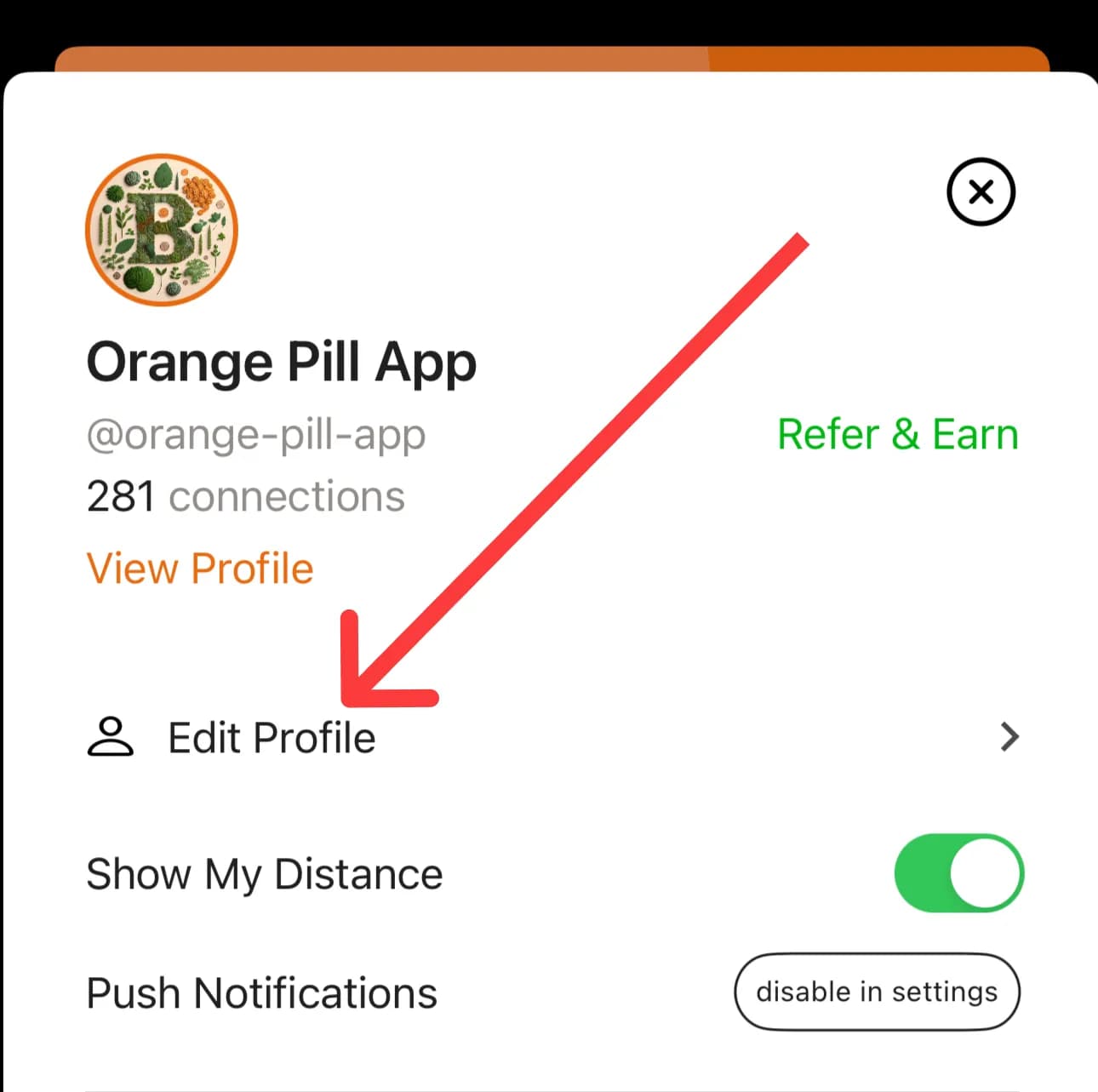
1. Click on Edit Profile.
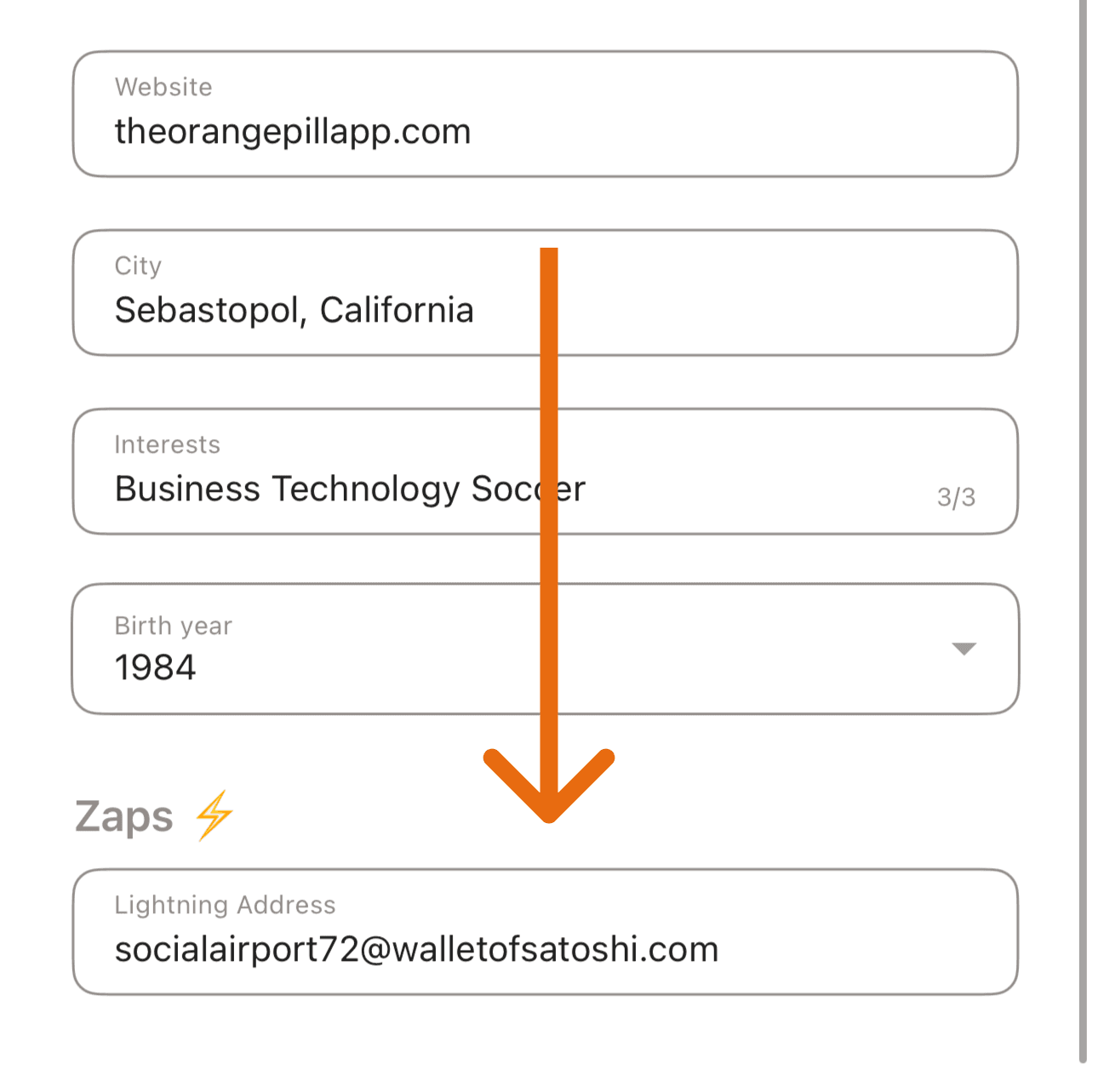
2. Scroll to the bottom and enter your LN address (looks like an email) in the Zaps ⚡ field.
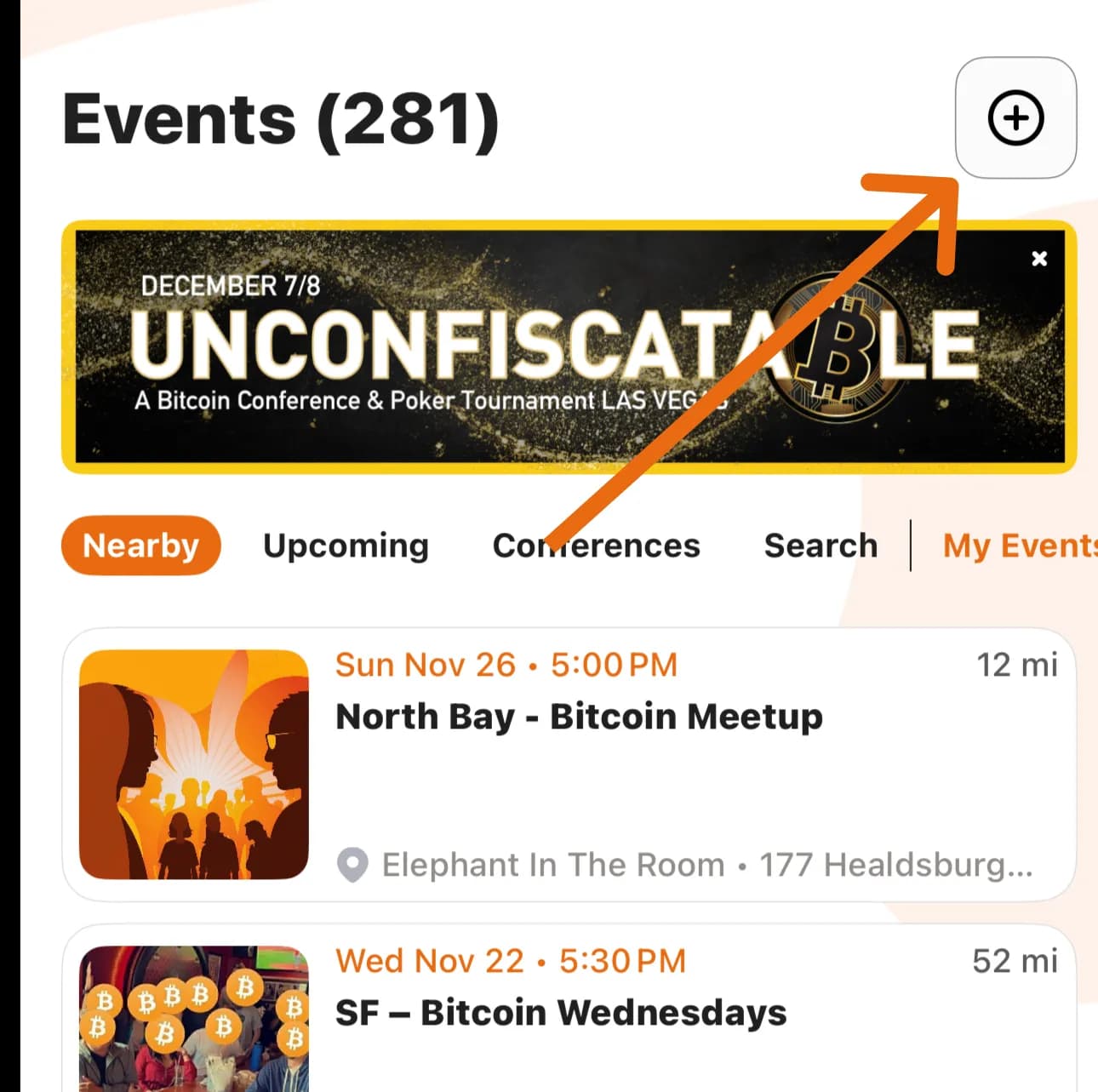
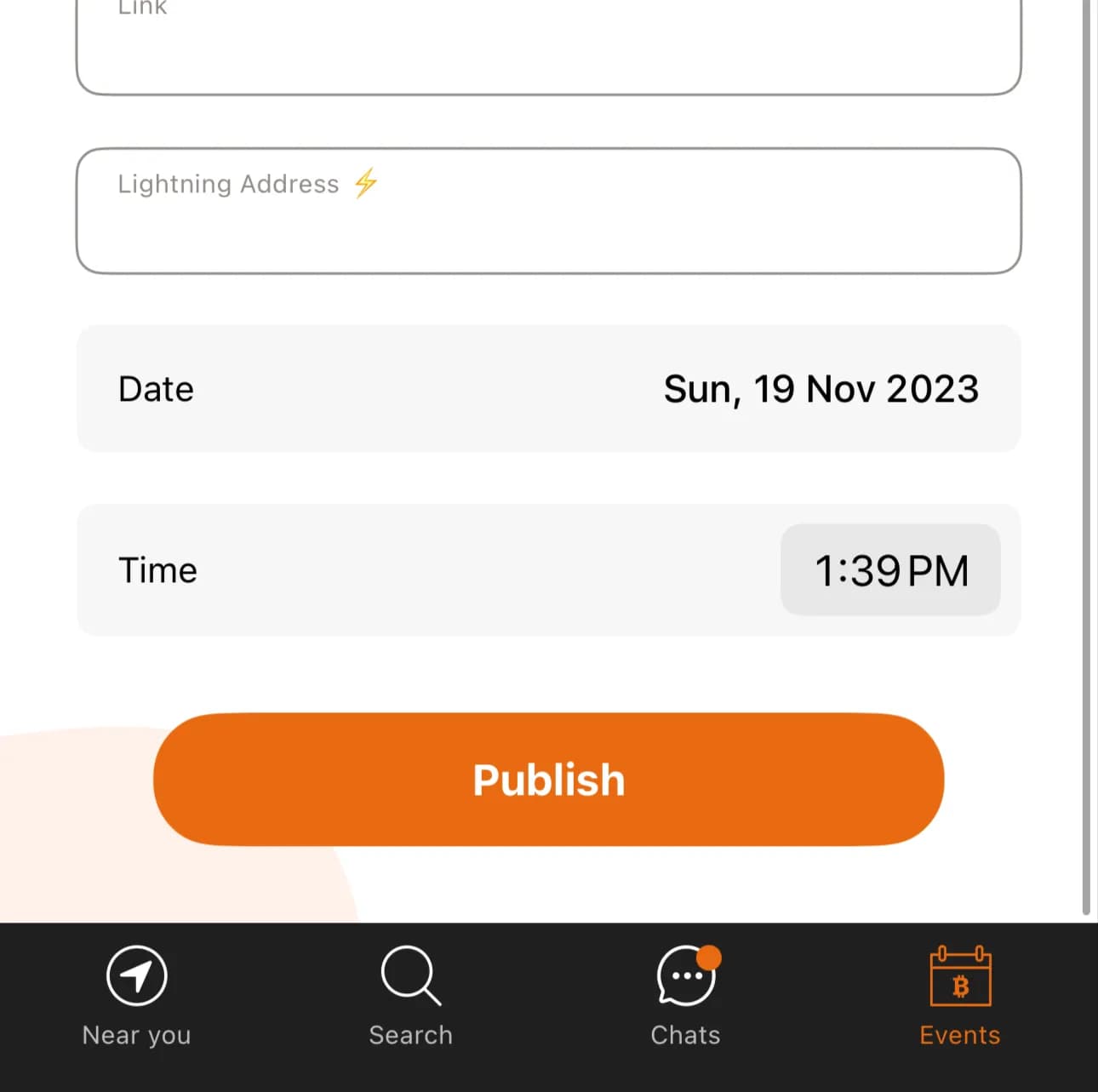
1. Click on ➕ icon from the Events tab.
2. Enter the event information.
3. Click Publish.
1. Click on My Events.
2. Click on the square with a pen button.
3. Edit the event and click Save
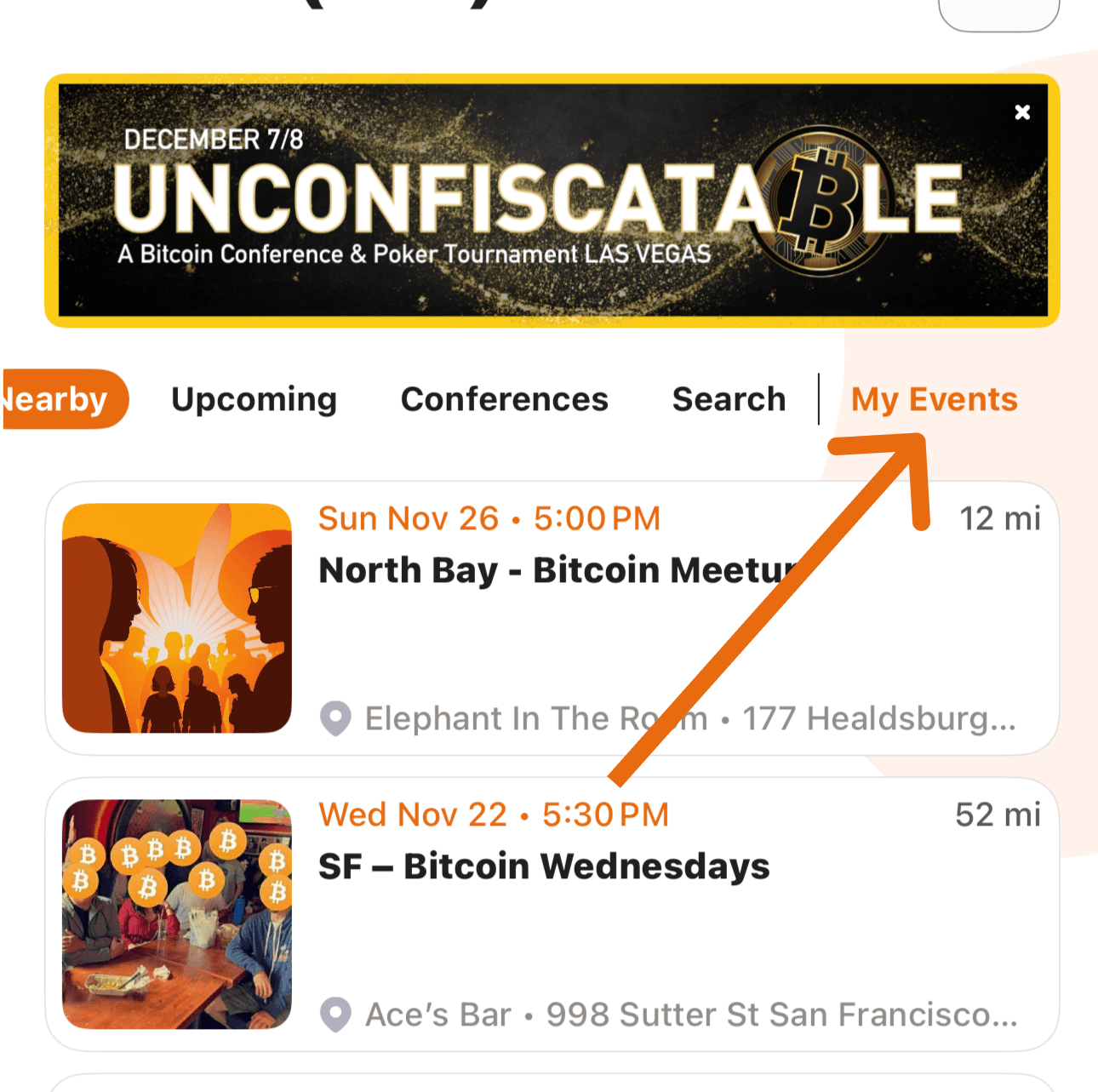
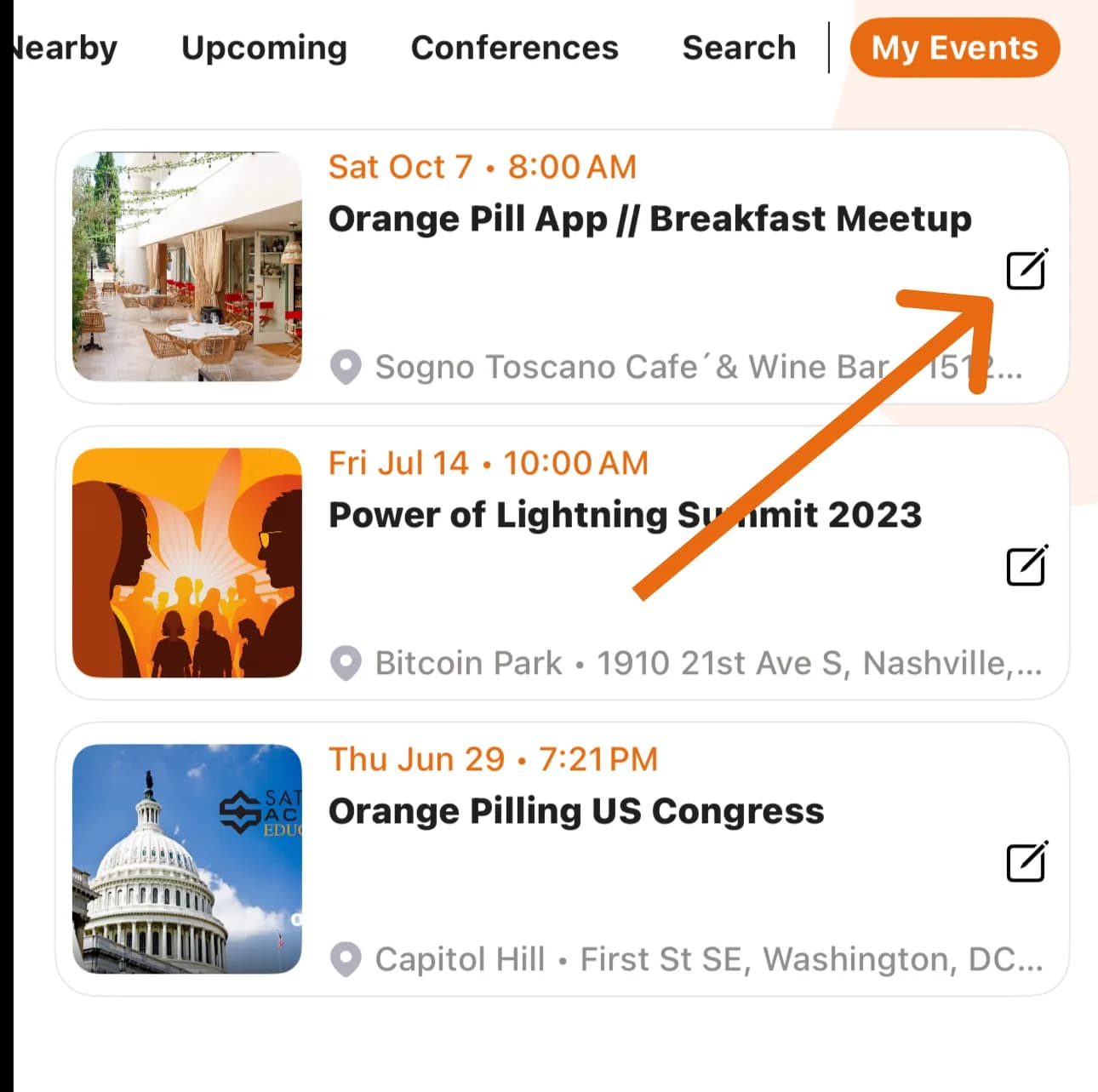
1. Click on My Events.
2. Click on the square with a pen button.
3. Scroll to the bottom and click Delete Event
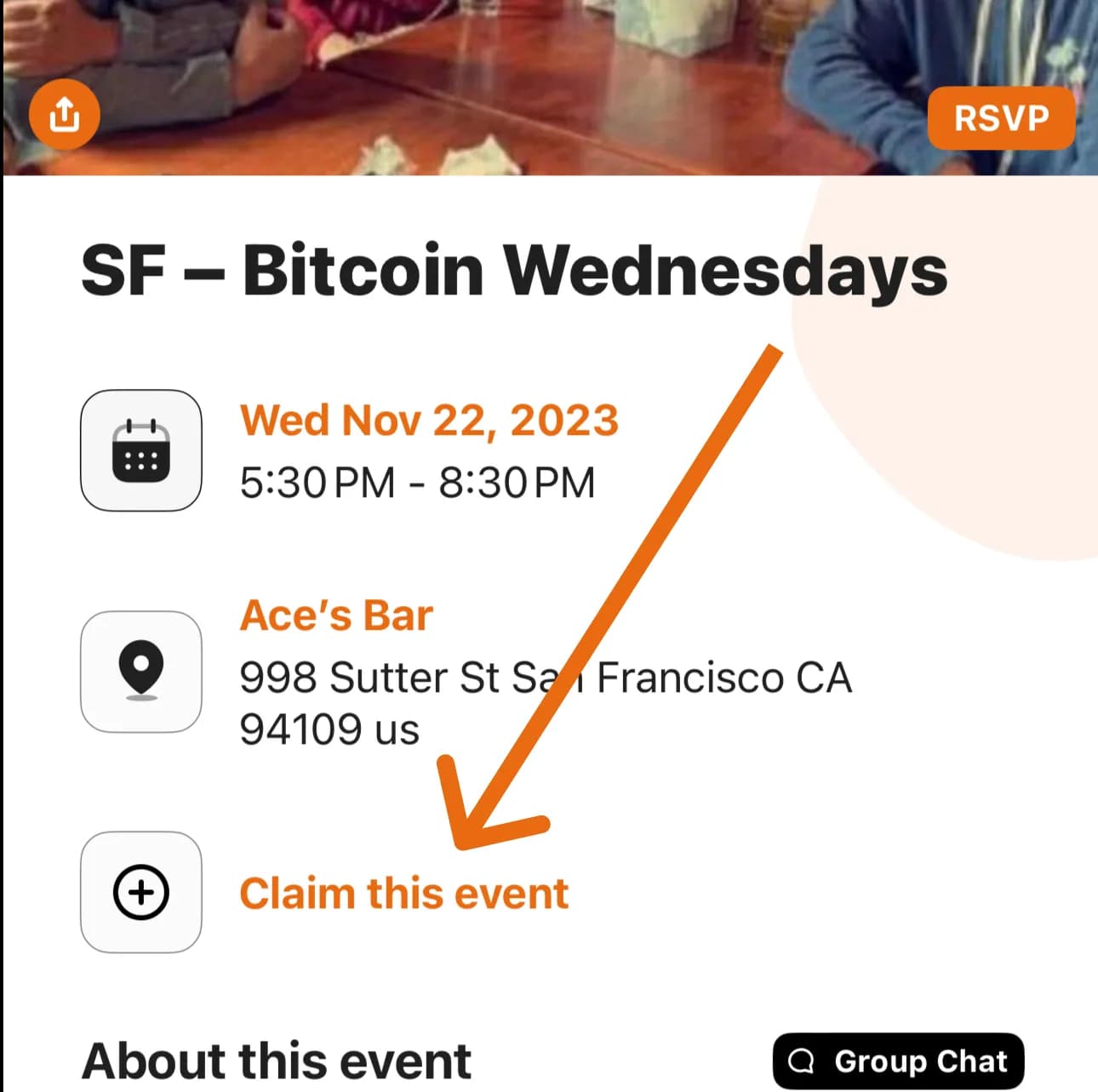
1. Open an Event.
2. Click on Claim this event.
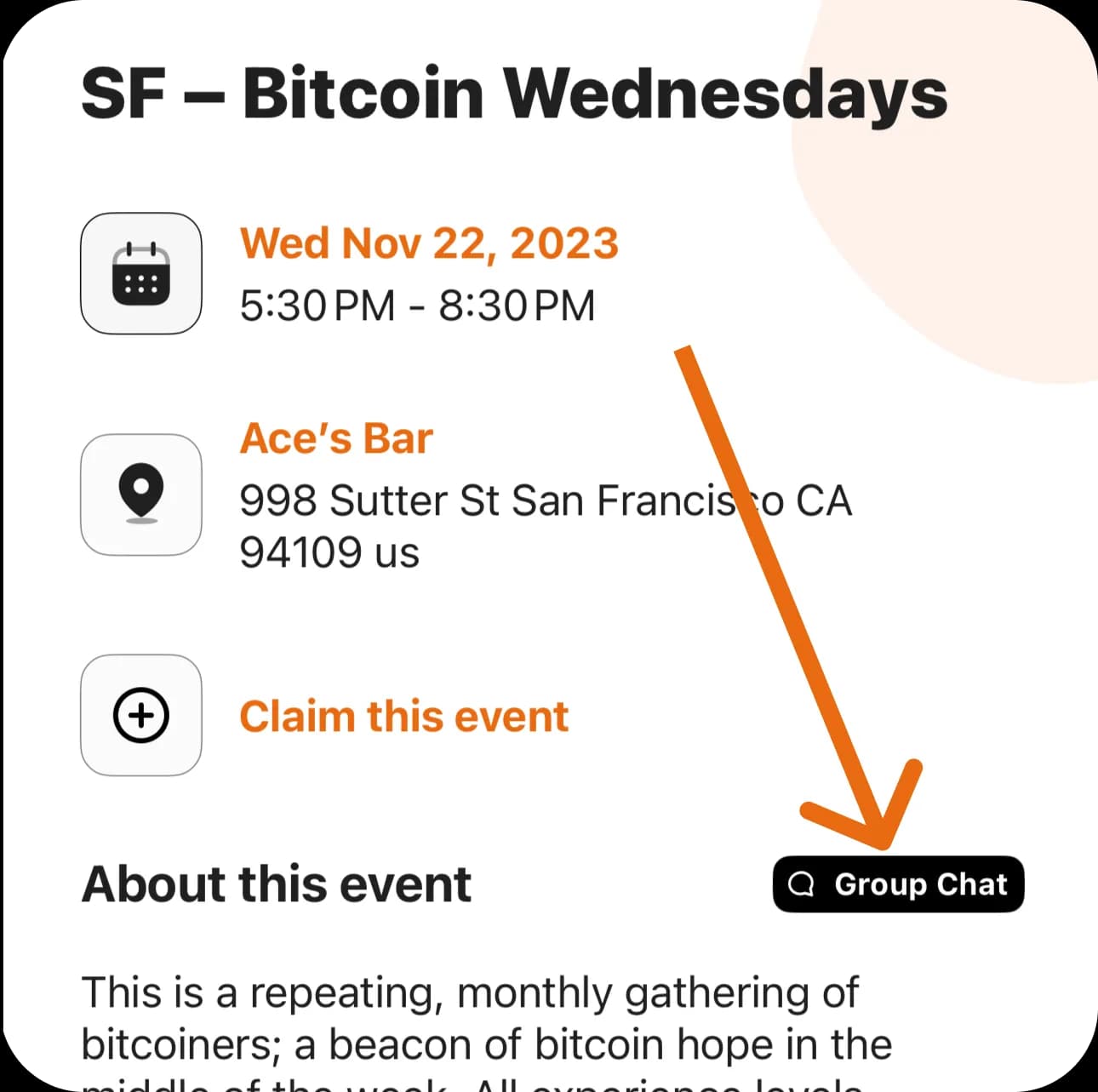
1. Open an Event.
2. Click on the Group Chat button.
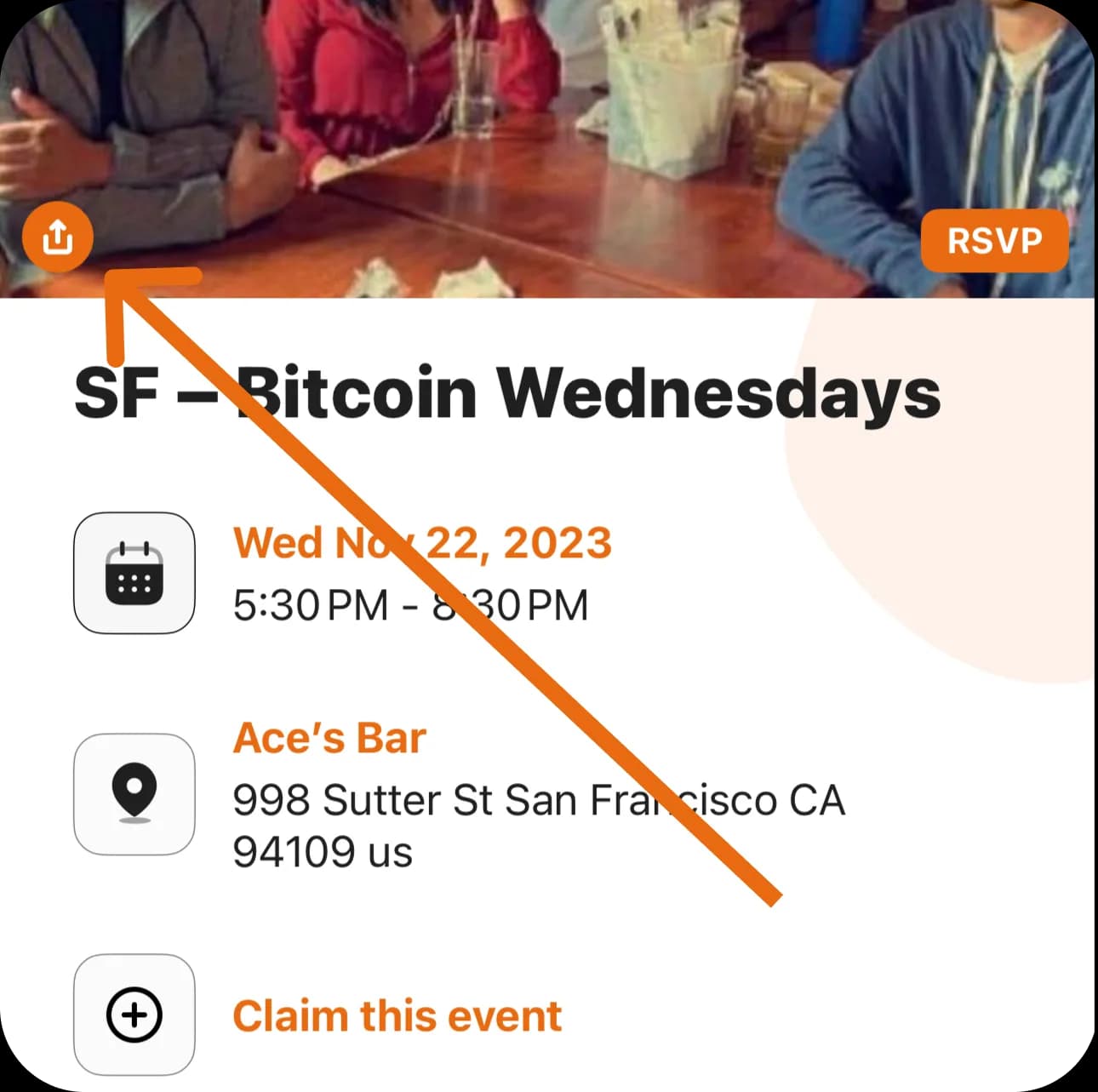
1. Open an Event.
2. Click on the orange button in the bottom left of the Event image.
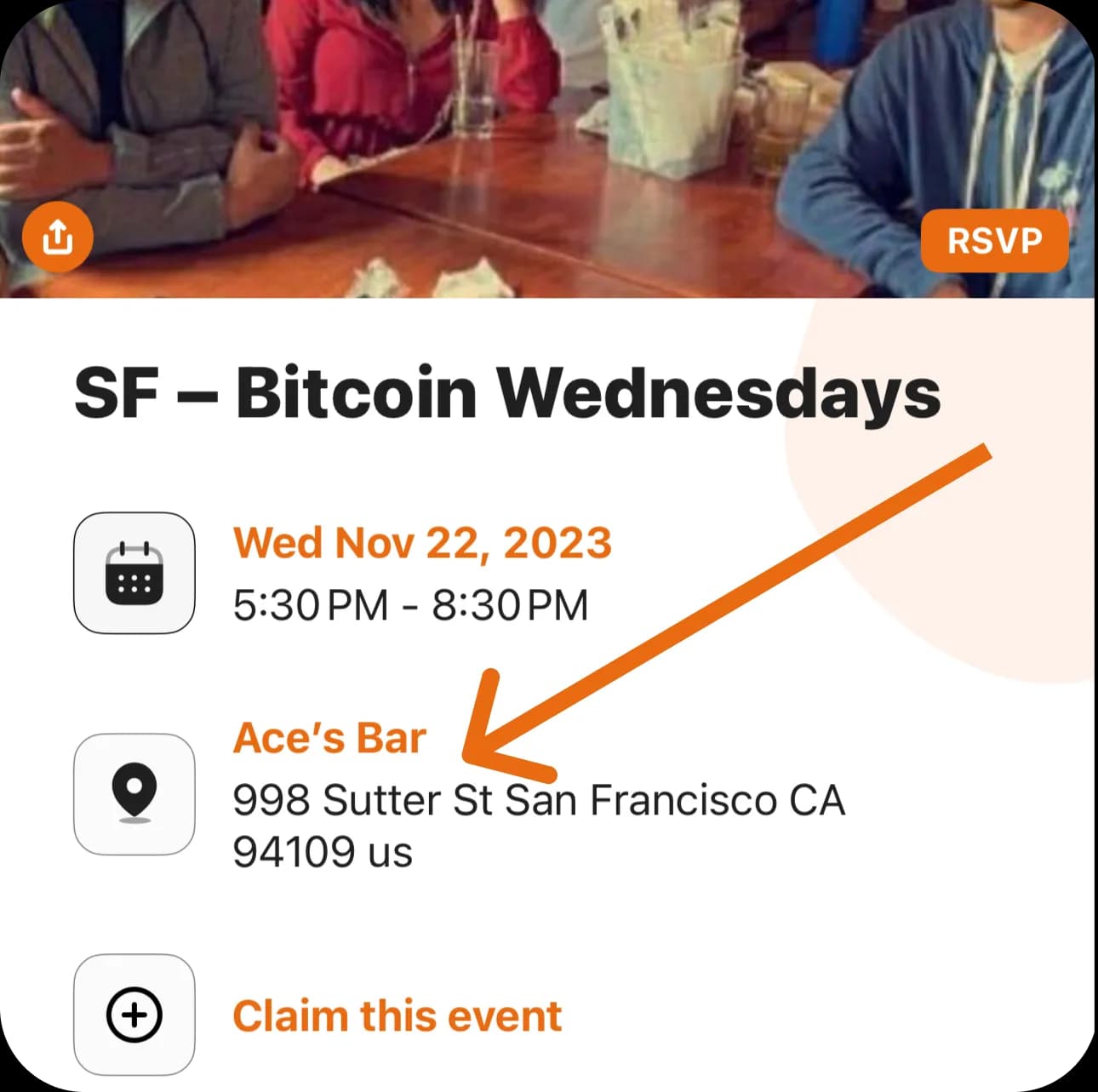
1. Open an Event.
2. Click on the Event address.
1. Click on your Profile Image
2. Click on Edit Profile
3. Add your #nostr pubkey to the Nostr field